Menu

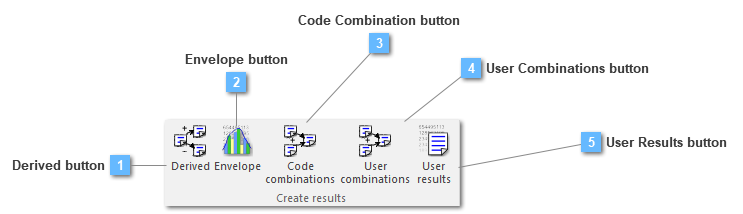
Create results toolbar

Create results toolbar
1

Derived button

1. Derived button
Create derived results
 
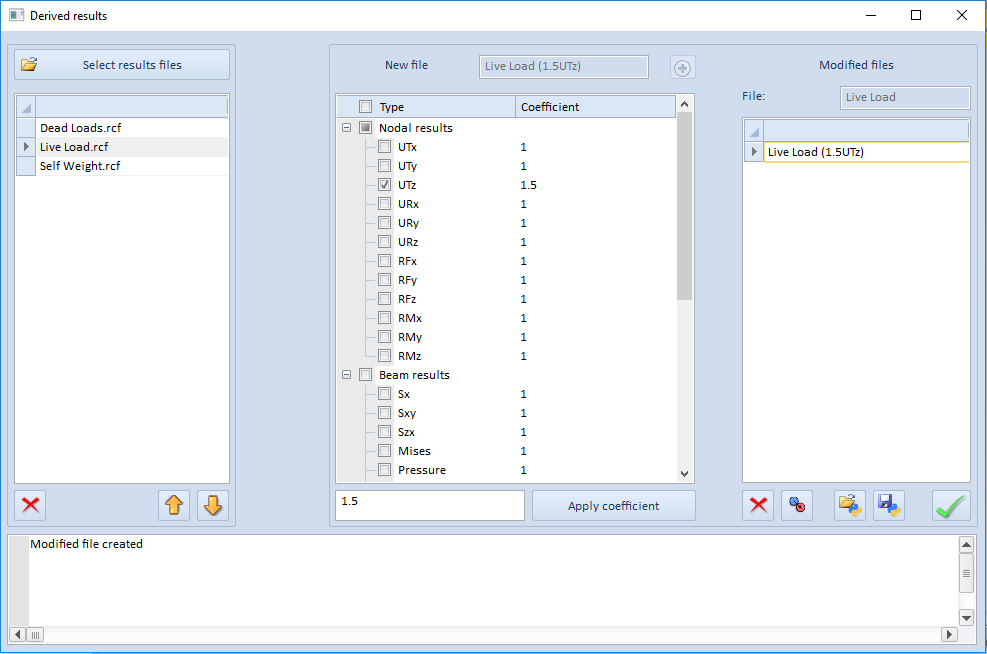
Once CivilFEM result data are stored, the user can perform arithmetic operations such as addition and subtraction of nodal and element results, for instance.
 
This result window is user friendly and easy to operate. The user just need to select the appropriate result files and multiply any available result by a coefficient. This coefficient will be specified whether in the coefficient column or in the "Apply coefficient" grid.
 
Then a new derived result file will be created.
 
 
2

Envelope button

2. Envelope button
Create the envelope of a set of results
 
The ENVELOPE utility can be used to create an envelope result file of previously obtained result files. Envelopes have to be homogeneous; specifically, they must be obtained by the application of the same code and by solving the same model. The new envelop result file will be homogeneous with the previous ones. The usual utilities for reading, plotting and listing can be used.
 
This results window is very user friendly and very easy to operate:
 
 
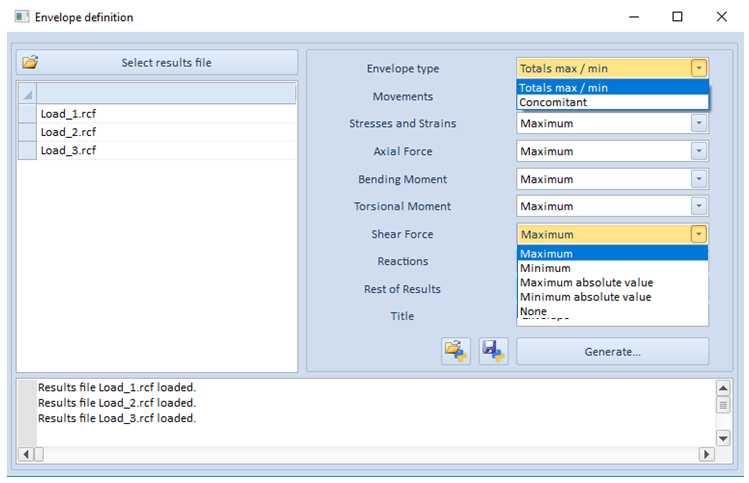
There are 3 types of envelope:
 
  • Maximum values envelope.
  • Minimum values envelope.
  • Concomitants
    
The first and the second type have been included in the envelope type "Totals max/min".  For it, the available options are specified ahead:
 
  • Displacements.
  • Stresses and strains.
  • Axial force.
  • Bending moment.
  • Torsion moment.
  • Shear force.
  • Reactions.
  • Rest of results (code check/design).
 
Those options may be active by selecting their: maximum, minimum, maximum absolute value or minimum absolute value, but also they might be deactivated by selecting the None option, as it can be seen in the image from above.
 
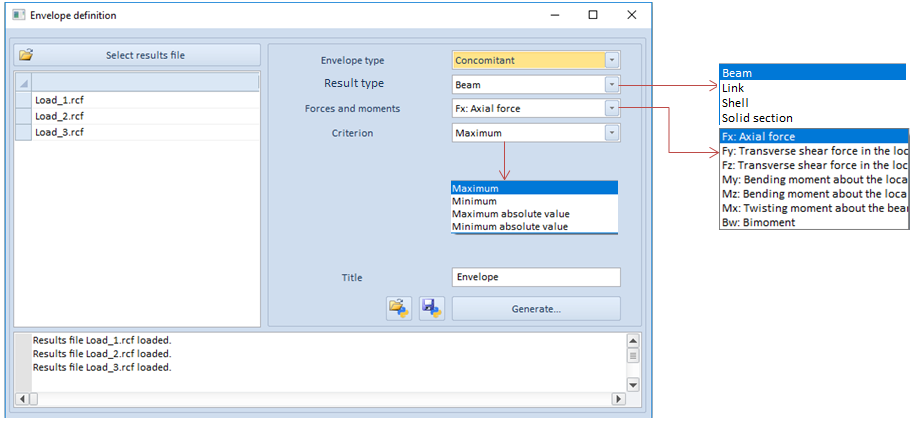
On the other hand, the user can select the third envelope type, that is, the Concomitant option. The next image attempts to specify the content of every menu which has been included for this purpose.
 
 
It is necessary to determine the element type, besides the required main result of forces and moments. The criterion specifies the value type the algorithm will take in order to generate the results.
 
CivilFEM will examine the .rcf file and will look for the results attending to the Forces and moments designated option, taking the criterion specified by the user.
 
A practical example will be attached. Click on the link Envelope example.
 
3

Code Combination button

3. Code Combination button
 
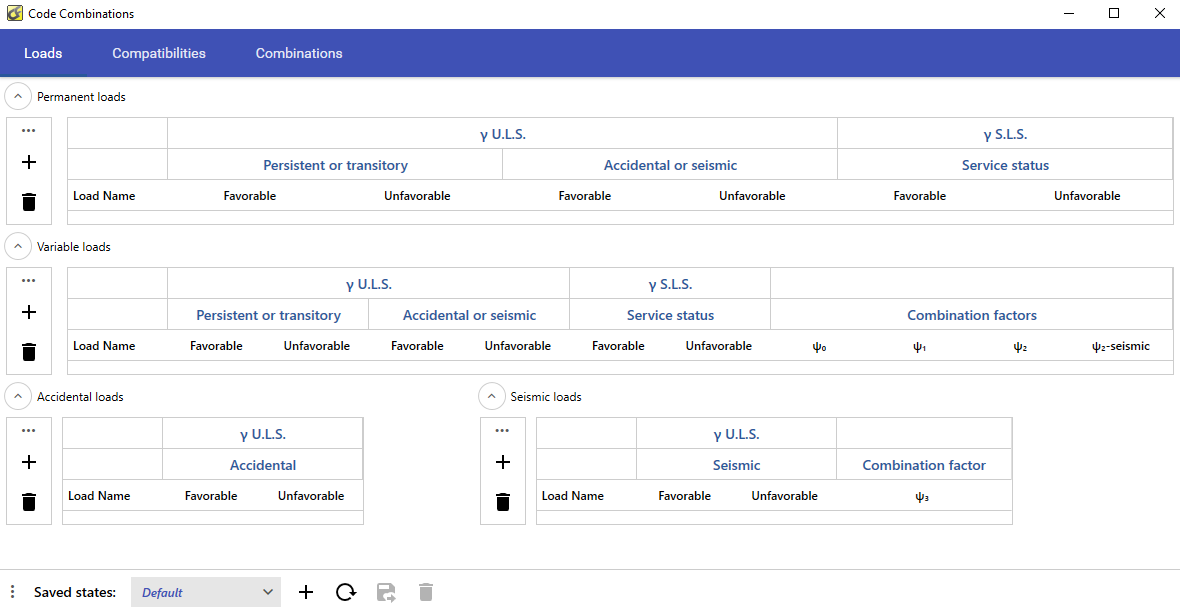
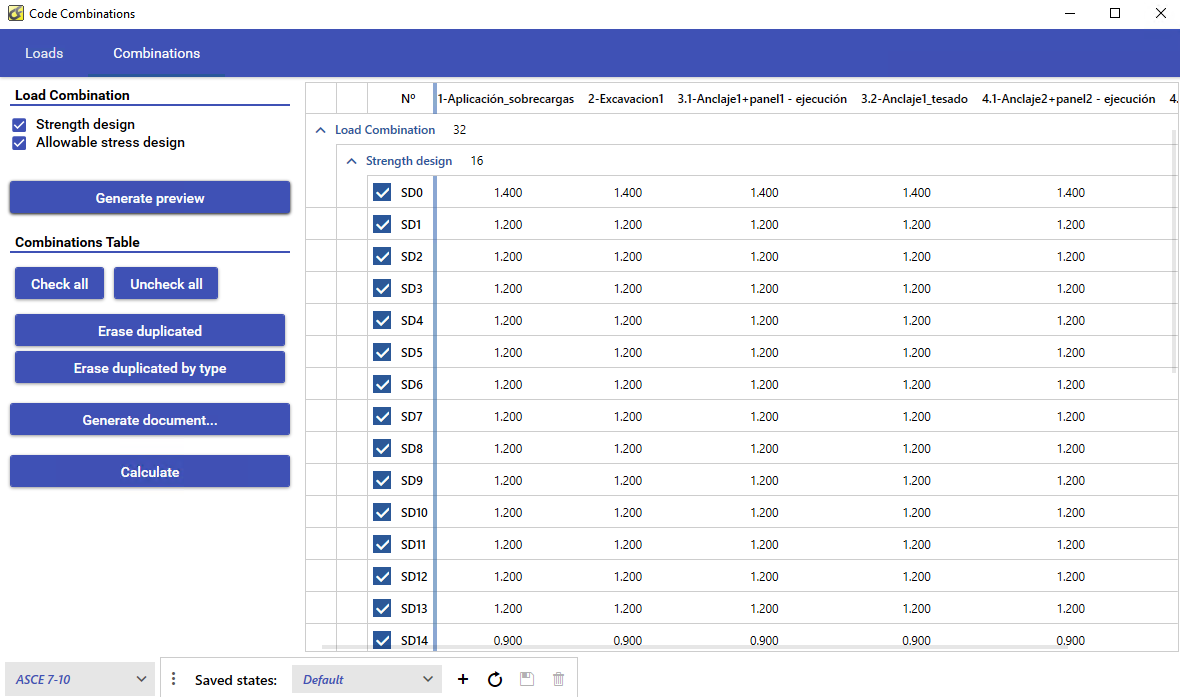
Choosing codes: The code can be selected at the bottom of the window.
 
In addition, the state of the windows can be saved to different "configuration settings" as persistent data, stored with the model.


Eurocode: Code combinations window consists of three steps: defining loads, set compatibilities and generating the combinations.
 
The first tab allows to add loads from the CivilFEM results loader, to the corresponding table. Keep in mind that adding/deleting loads from the tables can invalidate the other tabs states.
 
 
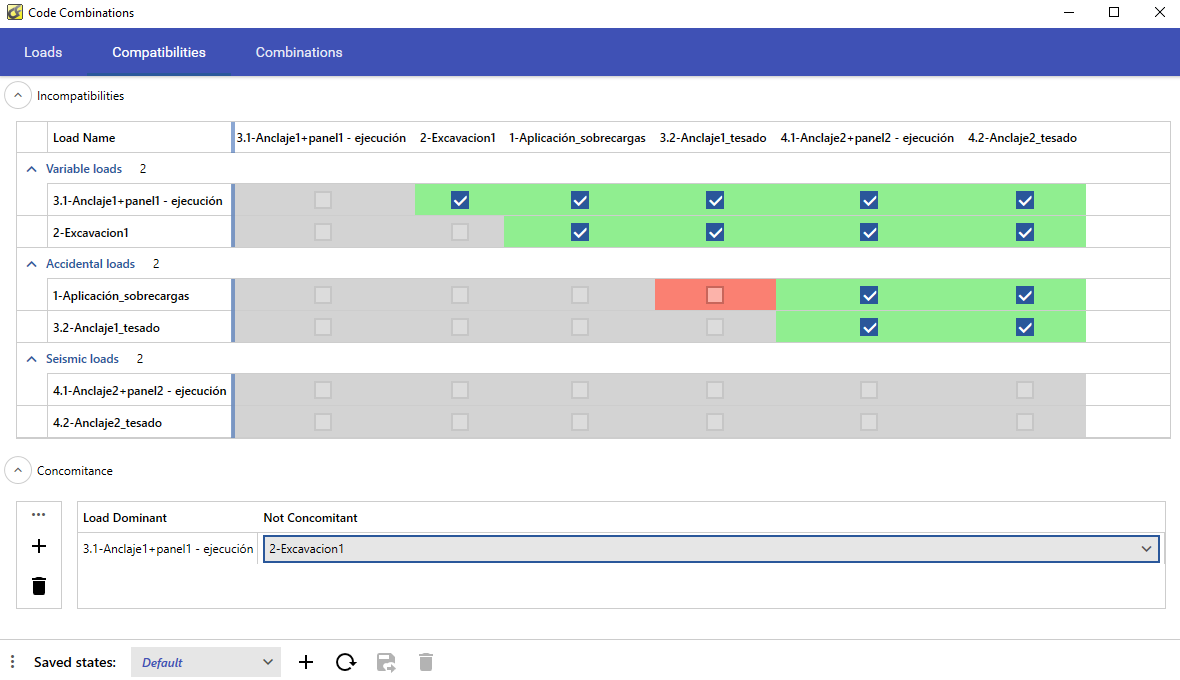
The second tab can be used to set special compatibilities between loads. By default, all loads are compatible with each other except accidental ones. Permanent loads are always compatible and aren't editable.
 
Concomitance between variable loads can be set to disable multiple variable loads when one of them is used as a dominant load for generating a combination.


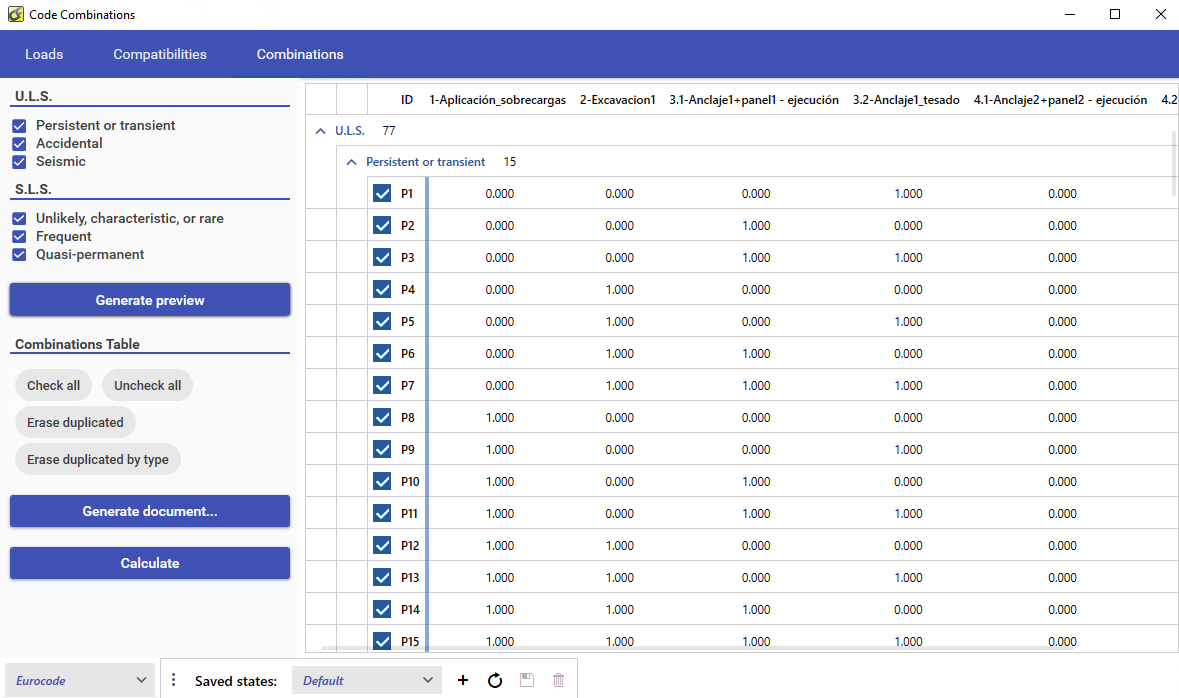
The third tab allows editing combinations and generate the final results files.
 
With the preview button the program can generate the asked combinations. After that, the table is filled with the coefficients of the loads, that can be edited, deselected for final generation or change its name.
 
Duplicated combinations can optionally be removed by the entire table or by type.
 
A document can be generated with the generated equations. Valid formats are .docx, .html, .txt.


American codes: ASCE-10, ASCE-07
 
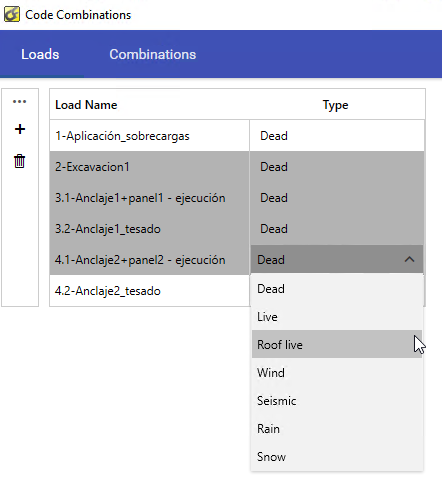
Simpler than European codes, according to ASCE, loads are defined and combinations are generated.
 
Multiple cells can be selected with Shift or Control keys and while holding this keys pop the drop down to change multiple load types.
 
The second tab allows editing combinations and generate the final results files.
 
With the preview button the program can generate the asked combinations. After that, the table is filled with the coefficients of the loads, that can be edited, deselected for final generation or change its name.
 
Duplicated combinations can optionally be removed by the entire table or by type.
 
A document can be generated with the generated equations. Valid formats are .docx, .html, .txt.


4

User Combinations button

4. User Combinations button
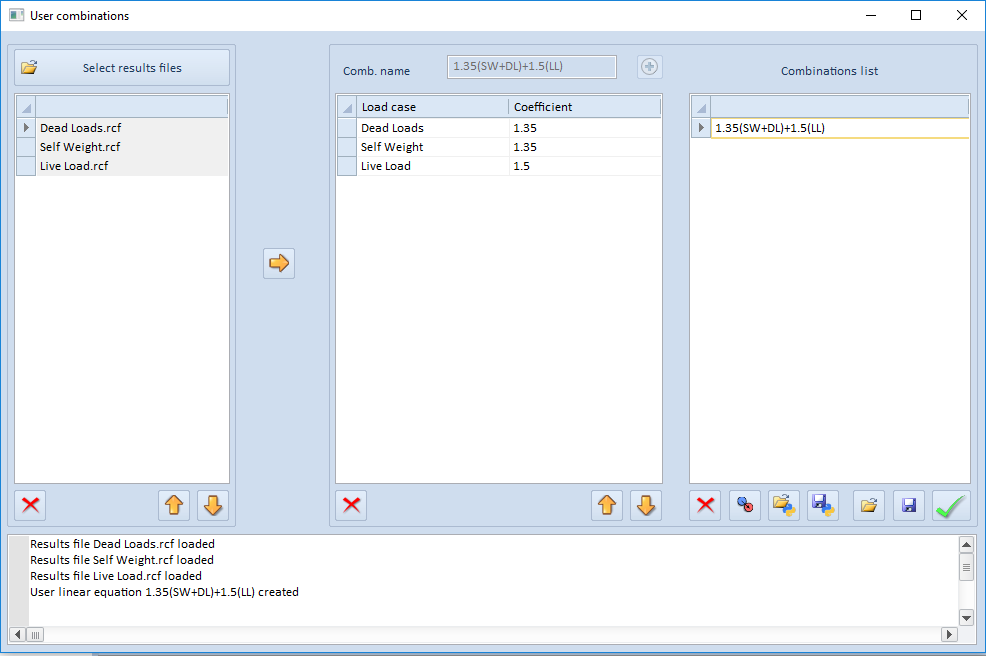
User linear combinations
 
A load combination is a linear postprocess operation between load cases obtained in a previous solving step. The outcome of the operation is a new result file. The user will be able to postprocess this file using all CivilFEM postprocessing tools and listing/result plotting options.
 
The resulting combination file is obtained by linearly combining the initial result files as defined in the combination rules with the desired coefficient.
 
The combination rules are defined in a new window (Automatic User Combination Tool) and single load cases must exist beforehand.
 
 
Summable data is the data that can "participate" in the database operations. All primary data (DOF solutions) are considered summable. Among the derived data, component stresses, elastic strains, thermal gradients and fluxes, magnetic flux density, etc. are considered summable.
 
Sometimes, combining "summable" data can lead to meaningless results such as nonlinear data (plastic strains, hydrostatic pressures), thermal strains, etc. Therefore, exercise your engineering judgment when reviewing combined load cases.
5

User Results button

5. User Results button
User results
 
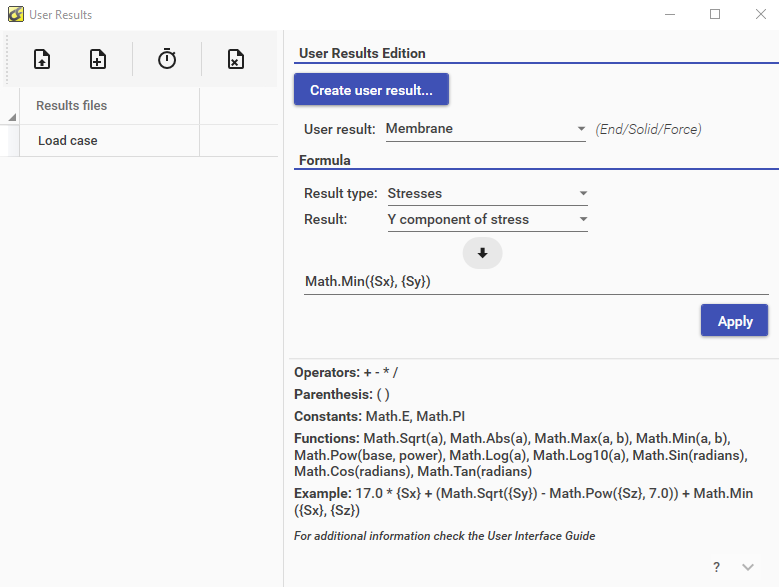
User results can be created through the following window:
 
 
Steps:
 
1) With the panel on the right side, you have to load the result files to which you want to add the user result. There are two options:
 
  • Automatically load the files already uploaded in the CivilFEM results tab.
  • Select files manually through a dialog window. Files can be sorted by time or frequency, by pressing the clock button, or removed from the list by using the delete button.
 
Alert: The results files will be modified to include the new results. Keep this in mind if you want to have backups.
 
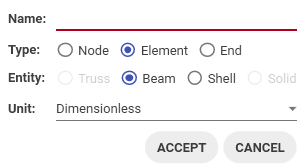
2) Once there are results files in the left panel, the user results creation button is enabled in the Edit panel.A dialog window appears in which the user result is configured and given a name (which cannot be empty):
 
 
In this panel there is a Combo in which you can choose the user results detected in the files on the left panel, or those created by the user previously.
 
 
3) In the last part of the right panel you have to set the formula with which the user result is created or edited. To do this, there is a question mark button that displays basic instructions for writing a valid formula. This formula can include functions, operators, constants, as described in the help panel.
 
In addition, other compatible results can be included as variables through the Combos above the formula, and included with the arrow button.
 
Functions (must be preceded by Math. ):
 
  • Sqrt(number): Returns the square root of a specified number.
  • Cbrt(number) : Returns the cube root of a specified value.
  • Abs(number) : Returns the absolute value of a specified number.
  • Max(a, b) : Returns the larger of two specified numbers.
  • Min(a, b) : Returns the smaller of two numbers.
  • Pow(base, power) : Returns a specified number raised to the specified power.
  • Exp(number) : Returns e raised to the specified power.
  • Log(number) : Returns the logarithm of a specified number.
  • Log10(number) : Returns the base 10 logarithm of a specified number.
  • Sin(radians) : Returns the sine of the specified angle.
  • Cos(radians) : Returns the cosine of the specified angle.
  • Tan(radians) : Returns the tangent of the specified angle.
  • Asin(radians) : Returns the angle whose sine is the specified number.
  • Atan(radians) : Returns the angle whose tangent is the specified number.
  • Acos(radians) : Returns the angle whose cosine is the specified number.
 
Alert: To differentiate the division by integers or by numbers with decimals, it is convenient to always write the numbers with decimals, for example: 17.0 instead of 17.