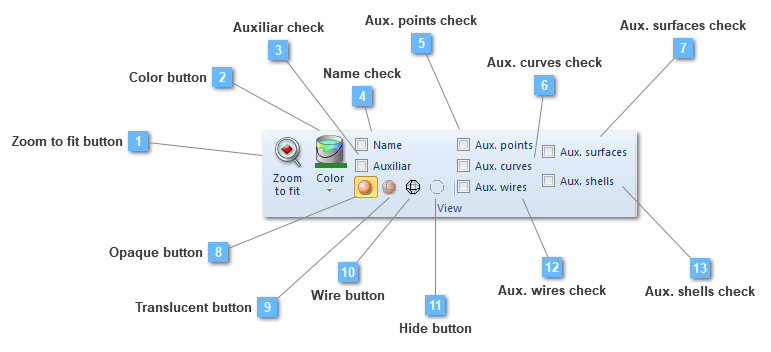
Zoom to fit button
Zoom to fit option execute an "Extent zoom" on the selected volume.
|
|
 Color button
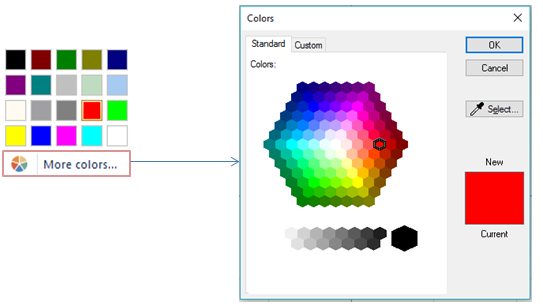
Choose the color for the object representation
Colors that CivilFEM uses to create an entity can be changed.
|
|
 Auxiliar check
Show the name of the auxiliary geometric entities
Show the name of the selected auxiliary geometries.
|
|
 Name check
Show the name of the entity
Show the name of the selected entity, or entities.
|
|
 Aux. points check
Show the name of the auxiliary points
The auxiliary points are the vertices of a volume.
|
|
 Aux. curves check
Show the name of the auxiliary curves
Aux. curves are the curves that define the volume.
|
|
 Aux. surfaces check
Show the name of the auxiliary surfaces
Auxiliary surfaces that have been defined during volume creation can be shown.
|
|
 Opaque button
The opaque tool makes the different points visible using solid colors.
|
|
 Translucent button
The translucent tool makes the different points visible using translucent mode.
|
|
 Wire button
The wire tool shows the different points in wire mode.
|
|
 Hide button
The hide tool makes the different points invisible.
|
|
 Aux. wires check
Show the name of the auxiliary wires
|
|
 Aux. shells check
Show the name of the auxiliary shells
|
|