Menu

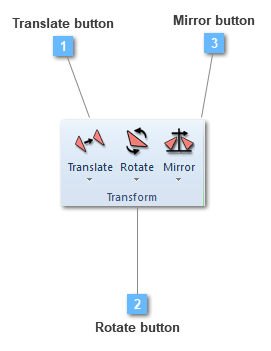
Transform points toolbar

Transform points toolbar
1

Translate button

1. Translate button
Translate a geometric entity
 
Vector
 
The vector tool can be used for making a copy of an existing point that will have a displacement (DX,DY,DZ) referenced to the initial point.
 
If the Copy option is activated, CivilFEM will copy and displace an existing point to the (Xo,Yo,Zo)+(DX,DY,DZ) coordinates provided by the user, but also maintaining the original point. However, if the option is not activated, CivilFEM will only displace the point to the (Xo,Yo,Zo)+(DX,DY,DZ) coordinate, deleting the original point.
 
Independent option is only available if Copy box is active. If this option is deactivated, points will be linked together and the original point won't be available for removal. If it is activated, points will not be linked allowing removal of the original point.
 
(DX,DY,DZ) are the relative displacements of the point referred to the initial coordinates (Xo,Yo,Zo).
 
Point to Point
 
Point to point tool allows the user to displace a point, taking two different points as a reference.
 
If Copy option is activated, CivilFEM will execute the action without deleting the selected point. If it is not, CivilFEM will delete the point as soon as the program finishes the command.
 
Independent option is only available if Copy box is active. If this option is deactivated, points will be linked together and the original point won't be available for removal. If it is activated, points will not be linked allowing removal of the original point.
 
Point 1 and Point 2 are the first and the second points of the translation vector.
 
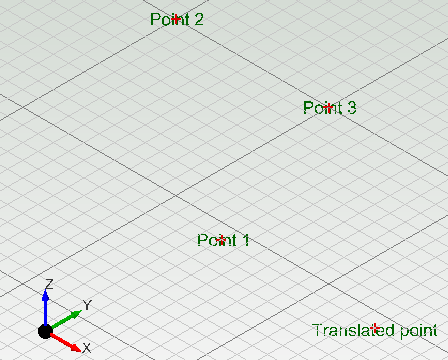
The process begins by picking a point (Point 1) and entering the other two points (Point 2 and Point 3) inside the properties bar. This two points define a vector (the translation vector) that will indicate the direction. Thus, Point 1 will be displaced according to the translation vector. The distance from the translated point will be equal to the distance between the two points that forms the translation vector (Point 2 and Point 3).
 
 
Multiple Copy
 
Multiple copy tool is available for making either a copy or a multiple copy of an existing point, in a direction defined by a vector.
 
In Vector 1 properties, a previously existing vector (curve by two points) is selected, obtaining a direction.
 
The Step 1 option establishes the distance between points.
 
Number 1 option fixes the number of copies.
 
If Independent option is deactivated, points will be linked together and the original point won't be available for removal. If it is activated, points will not be linked allowing removal of the original point.
 
2

Rotate button

2. Rotate button
Rotate a geometric entity
 
Rotate
 
The Rotate tool executes a rotary displacement, taking an existing axis as a reference. The user must specify the angle the point will rotate around the axis.
 
If the Copy option is activated, CivilFEM will execute the action without deleting the selected point. If it is not, CivilFEM will delete the point as soon as the program finishes the command.
 
The Axis option asks for an existing axis. The Axis can be chosen between both lines and axis entities.
 
User must specify the Angle the point is going to be rotated.
 
Multiple copy
 
The Multiple copy option executes a point rotation around a defined axis.
 
The Axis option asks for an existing axis. The Axis can be chosen between both lines and axis entities.
 
User must specify the Angle the point that is going to be rotated.
 
Rotations option determines the number of points that will be created. All those points will have the same distance between them.
 
3

Mirror button

3. Mirror button
Reflect a geometric entity
 
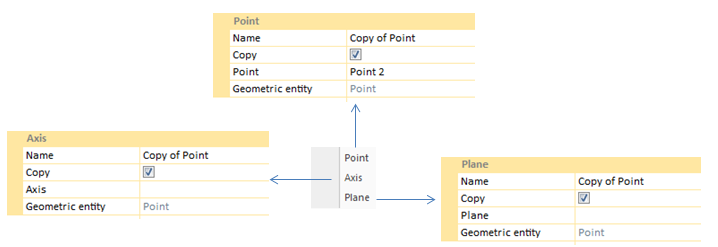
Point
 
The Point tool allows the user to create a copy of a selected point (Point 1), taking another point (Point 2) as a reference. That is, the process is based on the symmetry of point 1 in reference to point 2.
 
If the Copy option is activated, CivilFEM will execute the action without deleting the selected point. If it is not, CivilFEM will delete the point as soon as the program finishes the command.
 
In the Point option, the point that is going to be taken as a symmetry reference point can be selected.
 
 
Axis
 
The Axis tool allows the user to create a copy of a selected point (Point 1), taking an existing axis as a reference. That is, the process is based on the symmetry of point 1 in reference to an axis.
 
If the Copy option is activated, CivilFEM will execute the action without deleting the selected point. If it is not, CivilFEM will delete the point as soon as the program finishes the command.
 
The Axis option asks for an existing axis. The Axis can be chosen between both lines and axis entities.
 
 
Plane
 
The Plane tool allows the user to create a copy of a selected point (Point 1), taking a defined surface as a reference. That is, the process is based on the symmetry of point 1 in reference to a surface.
 
If the Copy option is activated, CivilFEM will execute the action without deleting the selected point. If it is not, CivilFEM will delete the point as soon as the program finishes the command.
 
The Plane option asks for an existing surface.