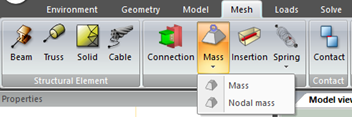
Spring button
Create a spring
A spring is an elastic tool that is used to store mechanical energy and which retains its original shape after a force is removed. Springs are typically defined in a stress free or “unloaded” state. This means that no longitudinal loading conditions exist unless preloading is specified. Those are defined as longitudinal and they connect two bodies together or connect a body to ground. Longitudinal springs generate a force that depends on linear displacement. Six types of springs are available:
The force in a linear mechanical spring is given by:
Spring stiffness units are Force/Length.
A point spring can be defined in three ways:
-
Fixed DOF: spring has two nodes, and the stiffness/force is dependent upon the displacement in the prescribed direction.
-
To Ground: spring has a single node, and the stiffness/force is dependent upon the displacement in the fixed direction.
-
True Direction: spring has two nodes, and the stiffness/force is along a line between the two nodes. The direction is updated with deformation if Large Strain is activated.
A preload in the spring may be specified through an initial force input. If the degrees of freedom are specified as zero for a mechanical run, the spring acts along the line joining the two nodes. This line direction is updated during an incremental stress analysis only if large displacement is flagged.
If the second node is specified as zero, the spring is assumed to be fixed to ground along the specified degree of freedom. The displacement of the ground along the specified degree of freedom is assumed to be zero.
For linear spring case, k constant for each node is computed as follows (Linear structural element with 2 elements and three nodes):
For surface spring case, k constant for node A is computed as follows (structural element with a quadrilateral and triangular elements), for plan view:
For nonlinear springs the stiffness can be varied as a function of relative displacement or angle. In this case, initial force capability is disabled. For dynamic analysis, a nonlinear spring damping table is available (force versus relative velocity). Dashpot damping is obtained from gradient values.
Relative displacement (or velocity) is taken as follows:
-
Springs defined by means one degree of freedom between two nodes:
DOF Increment of node 2 – DOF Increment of node 1.
-
To ground springs: – DOF Increment of node 1.
-
True direction: DOF is the relative location of the two nodes, positive displacement if they get further and negative if the get closer.
For rotational springs a rotational or torsional stiffness K is used (Force*length/angle) and a different cordinate system can be used to define the spring directions. For rotational springs a nonlinear stiffness (moment vs relative rotation table) is available as well.
Activation and Deactivation Time can be set for all Spring types to be taken into account in construction stage analyses.
|