To properly display this page you need a browser with JavaScript support.
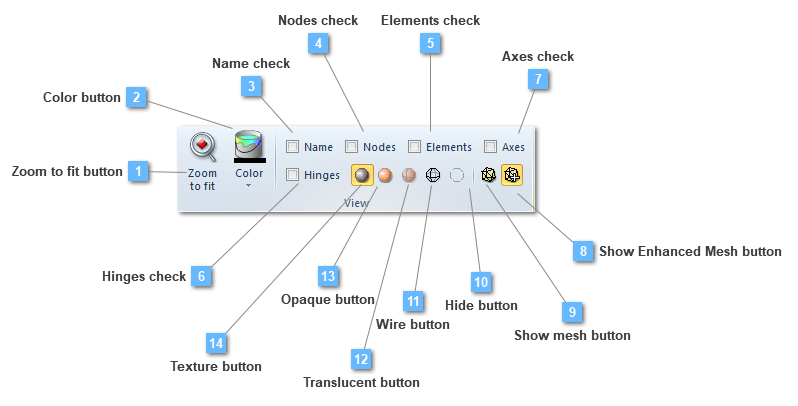
Zoom to fit button
Execute an "Extent" zoom over the selected structural element.
Color button
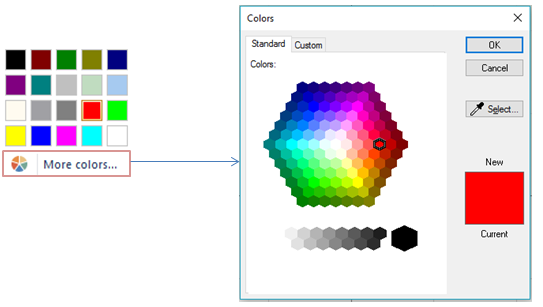
Choose the color for the object representation
The colors that CivilFEM uses to create an entity can be changed.
Name check
Show the name of the entity
Show the name of the selected entity, or entities.
Nodes check
Show the nodes numbering
Elements check
Show the finite elements numbering
Hinges check
Show the hinges of the beam structural elements
Axes check
Show the local axes of the finite elements
Show Enhanced Mesh button
Show enhanced option is active by default, showing the structural element in a 3D mode.
Show mesh button
When show mesh option is active structural elements, which have being selected, are seen in its true extent. That is, structural elements will have a 2D appearance and only curves or surfaces that contains the nodes will be visualized.
Hide button
The hide tool makes the different structural elements invisible.
Wire button
The wire tool shows the different structural elements in wire mode.
Translucent button
The Translucent tool makes the different structural elements visible using the translucent mode.
Opaque button
The opaque tool makes the different structural elements visible using solid colors.
Texture button
The texture tool makes visible each structure element with a texture effect, which provides a more realistic appearance.