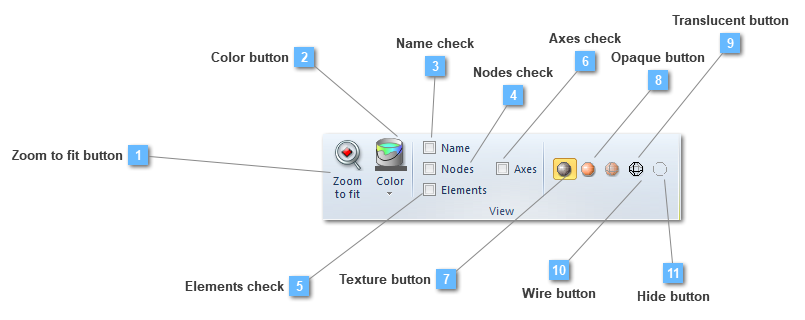
Zoom to fit button
Execute an "Extent" zoom over the selected structural element.
|
|
 Color button
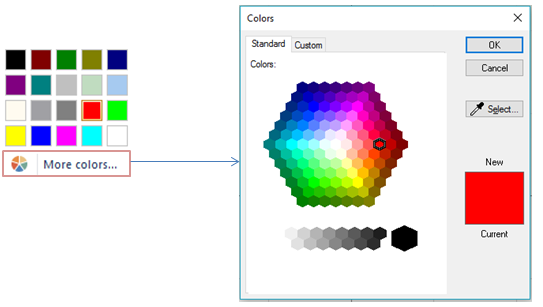
Choose the color for the object representation
The colors that CivilFEM uses to create an entity can be changed.
|
|
 Name check
Show the name of the entity
Show the name of the selected entity, or entities.
|
|
 Nodes check
Show the nodes numbering
|
|
 Elements check
Show the finite elements numbering
|
|
 Axes check
Show the local axes of the finite elements
|
|
 Texture button
The texture tool makes visible each structure element with a texture effect, which provides a more realistic appearance.
|
|
 Opaque button
The opaque tool makes the different structural elements visible using solid colors.
|
|
 Translucent button
The Translucent tool makes the different structural elements visible using the translucent mode.
|
|
 Wire button
The wire tool shows the different structural elements in wire mode.
|
|
 Hide button
The hide tool makes the different structural elements invisible.
|
|