Script editor button
Show or hide the script editor
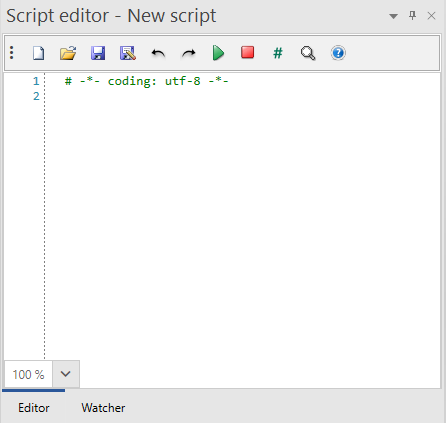
Tab 1 – Editor: Here you can write, open, save, and run your Python scripts. It includes a toolbar with editing, execution, and help actions.
1) New Document (Ctrl + N): Creates a new document and clears the current editor content.
2) Open Document (Ctrl + O): Opens a .py file and loads it into the editor. If there are unsaved changes, prompts confirmation before replacing.
3) Save Document (Ctrl + S): Saves the current document. If never saved before, opens a Save dialog.
4) Save Document As: Opens a Save As dialog to store a copy with a new name/location.
5) Undo (Ctrl + Z): Undoes the last edit action.
6) Redo (Ctrl + Y): Redoes the previously undone action. Depends on Undo history.
7) Run Script (F5): Executes the editor content with the configured Python interpreter.
8) Stop Script (Shift + F5): Stops the currently running script. Enabled only while a script is running.
9) Toggle Comment (Ctrl + Q): Comments/Uncomments the selected lines (using `#`).
10) Search and Replace (Ctrl + F): Opens the Search and Replace panel.
11) Script Help: Displays the script editor help/documentation.
Quick tips (Tab 1)
- Save frequently (Save) and use Save As for versioning.
- Before using Open, save your changes to avoid data loss.
- If the script hangs, use Stop Script and check resources.
- It is not advisable that the user deletes the first command line of the Script editor (# -*- coding: utf-8 -*-)
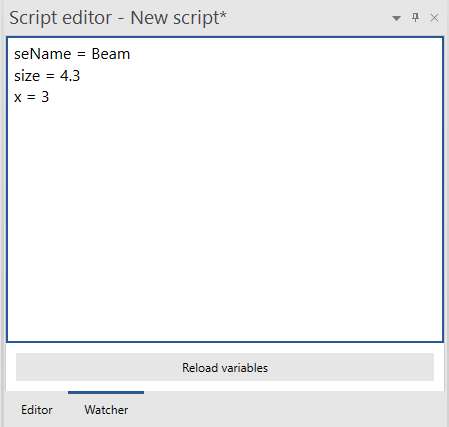
Tab 2 – Watcher: Allows you to view in real time the values of variables defined in Python’s global pool during execution.
- Variable table: Lists each global variable name and value.
- Reload/Refresh variables button: Updates the view and reloads the variable values
- Warnings/Limitations: Update reflects only the current state in memory; complex variables may be shown in truncated form.
- Typical error messages: “No active execution context. Run a script before reloading.
Quick tips (Tab 2)
- Use Reload after each run to get updated values.
- If a variable does not appear, make sure it is in the global scope.
- For large structures, consider printing to the console for detailed inspection.
Code Autocompletion
The script editor provides code autocompletion to help you write Python commands faster and more accurately.
To activate autocompletion, press Ctrl + Space while typing in the editor. A popup window will appear showing a list of available Python commands, functions, and symbols that match the current context.
You can navigate through the list using the keyboard or mouse. As you select an option, a tooltip is displayed showing the corresponding help information for that command, including its description and usage details.
This feature reduces typing effort, helps prevent syntax errors, and allows quick access to command documentation directly while writing scripts.
| 













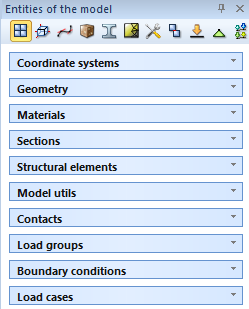
 is selected by default, so the whole group of entities are shown.








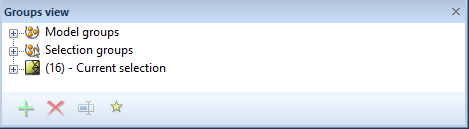

 button. It is possible to create as many groups as the user needs.
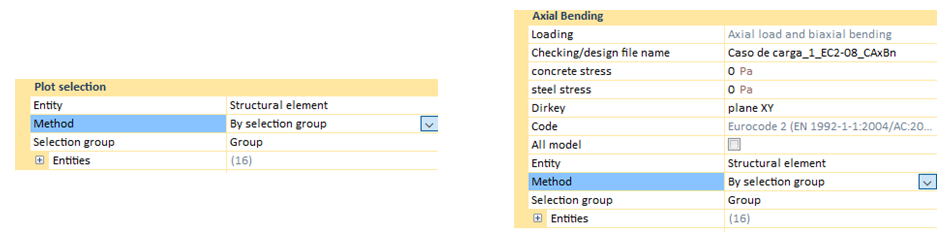 button.