Menu

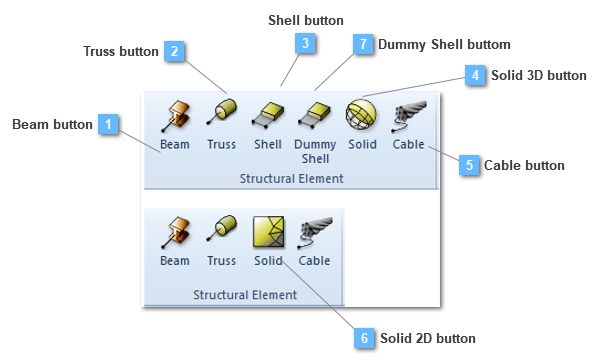
Structural Element toolbar

Structural Element toolbar
 
A structural element is an entity which is composed of:
 
 
Mesh parameters include the following:
 
 
For a longer information about introductory aspects, click on the link.
 
1

Beam button

1. Beam button
Create the structural element for a beam.
 
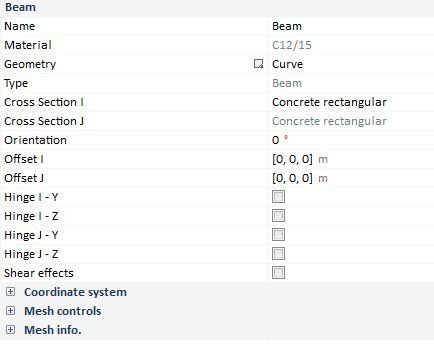
Beam structural elements will contain the following properties:
 
  • Cross section at I, J ends
  • Orientation, which is the angle about X-axis (º/rad)
  • Offsets in cross section I, J ends
  • Mesh Controls
     
    Properties bar is showed ahead to be more widely defined:
     
 
Material
 
Only structural and generic materials are allowed to be assigned to linear structural elements, that is, structural/ prestressing steel, concrete or generic material.
 
Cross section I-J ends
 
For this version, linear structural elements must have same cross section (constant along the line) for both I-J ends.
 
Beam offsets
 
Coordinate values that locate the node with respect to the default origin of the cross section (center of gravity) specified in the section axes system.
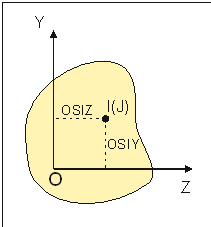


Where:
              
OSIZ
Offset Z-coordinate with respect to section gravity center
OSIY
Offset Y-coordinate with respect to section gravity center
 
This concept is widely explained in the Beam-Shell offsets chapter.
 
Beam mesh controls
 
User can take more control in the meshing process by using one of the following element size specifications:
  • Uniform: The mesh of the element will be distributed evenly using equal divisions.
  • Variable L1->L2: The mesh of the element will be distributed unevenly, with the mesh being denser in one end than in the other end of the element. This is useful in cases where a finer mesh is needed near an end to obtain more accurate end results. Two options are present to control the subdivisions:
     
  • Number of divisions: The user enters the total number of divisions and the Relation parameter (must be > 0). This parameter will control the density of the mesh approaching the end of the element. Using a Relation between 0 and 1, or > 1, we can choose which of the two element ends will be more dense:
     
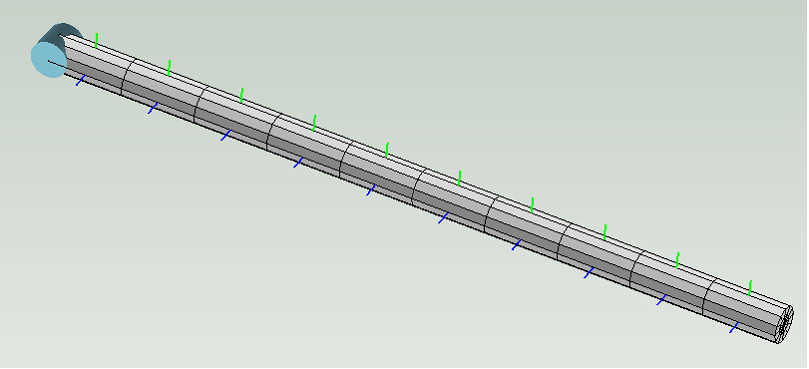
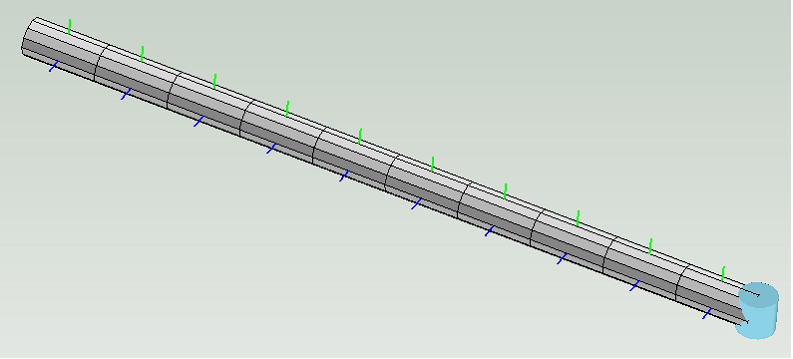
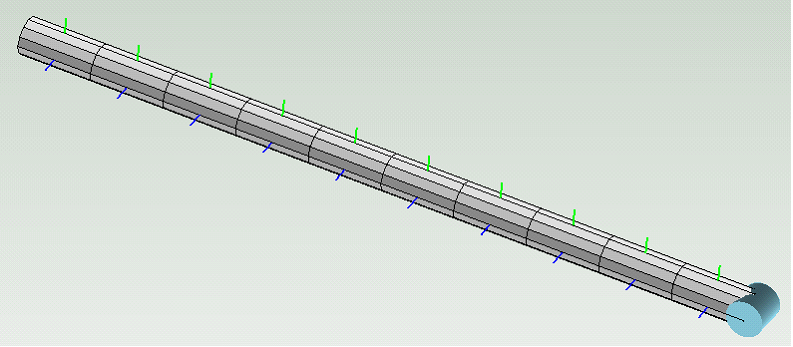
Relation of 20:
         
Relation of 0.01:
 
  • Length: Two lengths need to be defined, Length1 and Length2. These lengths represent the size of the divisions at each end.
 
  • Variable L1->L2->L1: This option allows the creation of symmetrical mesh distributions on elements. This is useful in cases where a finer mesh is needed near both end to obtain more accurate end results. Two options are present to control the subdivisions:
     
  • Number of divisions: The user enters the total number of divisions (must be an odd number) and the Relation parameter (must be > 0). This parameter will control the density of the mesh approaching the end of the element. Using a Relation between 0 and 1, or > 1, we can choose which of the two element ends will be more dense:
 
Relation of 20:
Relation of 0.01:
 
  • Length: Two lengths need to be defined, Length1 and Length2. These lengths represent the size of the divisions at the end (length1) and the size of the central division (length2).
 
Executing a congruent mesh is one of the most important target in our model, therefore, user must fix properly the mesh to the structural element depending on its dimensions.
 
Beam hinges
 
Hinges between beam structural elements can be defined. User must select which of the element local direction (or both) as the revolute axis and in which end (I, J). The possibilities are (mixed configurations are possible):
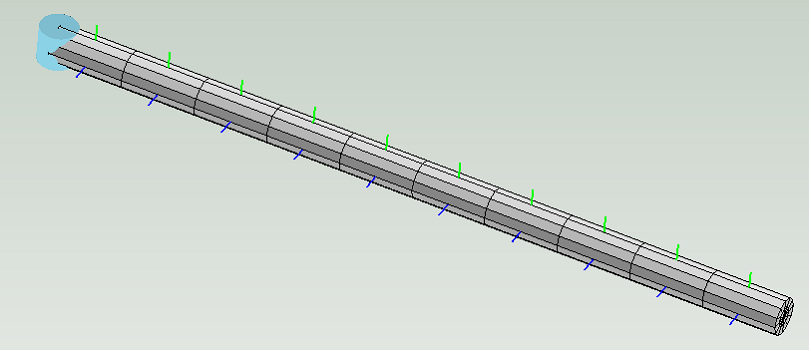
 
  • Hinge I – Y: degree of freedom of rotation with respect to Y local element axis for I - end:
     
 
  • Hinge I – Z: degree of freedom of rotation with respect to Z local element axis for I - end:
     
 
  • Hinge J – Y: degree of freedom of rotation with respect to Y local element axis for J - end:
     
 
  • Hinge J – Z: degree of freedom of rotation with respect to Z local element axis for J - end:
     
 
Shear effects: this option could be activated if the user wants to take into account the transverse shear effects.
 
If the user would like to know more about the beam finite element, some pieces of information are provided in the Finite element characteristics chapter.
 
 
2

Truss button

2. Truss button
Create the structural element for a truss.
 
Truss elements (tension only or compression-only link elements) will contain the following properties:
 
  • Material
  • Cross section at I, J ends
  • Mesh Controls
 
Properties bar is showed ahead to be more widely defined:
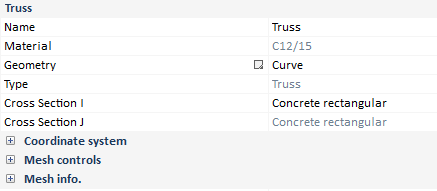
 
 
Material
 
Only structural and generic materials are allowed to be assigned to linear structural elements, that is, structural/ prestressing steel concrete or generic material.
 
Cross section I-J ends
 
For this version, linear structural elements must have same cross section (constant along the line) for both I-J ends.
 
Truss mesh controls
 
User can take more control in the meshing process by using one of the following element size specifications:
  • Uniform: The mesh of the element will be distributed evenly using equal divisions.
  • Variable L1->L2: The mesh of the element will be distributed unevenly, with the mesh being denser in one end than in the other end of the element. This is useful in cases where a finer mesh is needed near an end to obtain more accurate end results. Two options are present to control the subdivisions:
  • Number of divisions: The user enters the total number of divisions and the Relation parameter (must be > 0). This parameter will control the density of the mesh approaching the end of the element. Using a Relation between 0 and 1, or > 1, we can choose which of the two element ends will be more dense:
     
Relation of 20:
 
Relation of 0.01:
 
  • Length: Two lengths need to be defined, Length1 and Length2. These lengths represent the size of the divisions at each end.
 
  • Variable L1->L2->L1: This option allows the creation of symmetrical mesh distributions on elements. This is useful in cases where a finer mesh is needed near both end to obtain more accurate end results. Two options are present to control the subdivisions:
     
  • Number of divisions: The user enters the total number of divisions (must be an odd number) and the Relation parameter (must be > 0). This parameter will control the density of the mesh approaching the end of the element. Using a Relation between 0 and 1, or > 1, we can choose which of the two element ends will be more dense:
 
Relation of 20:
Relation of 0.01:
 
  • Length: Two lengths need to be defined, Length1 and Length2. These lengths represent the size of the divisions at the end (length1) and the size of the central division (length2).
 
Executing a congruent mesh is one of the most important target in our model, therefore, user must fix properly the mesh to the structural element depending on its dimensions.
 
If the user would like to know more about the truss finite element, some pieces of information are provided in the Finite element characteristics chapter.
 
3

Shell button

3. Shell button
Create the structural element for a shell.
 
 
Shell structural elements will contain the following properties:
 
  • Material
  • Thickness
  • Offset
  • Mesh controls
  • Coordinate system
  • Reinforcement
 
Properties bar is showed ahead to be more widely defined:
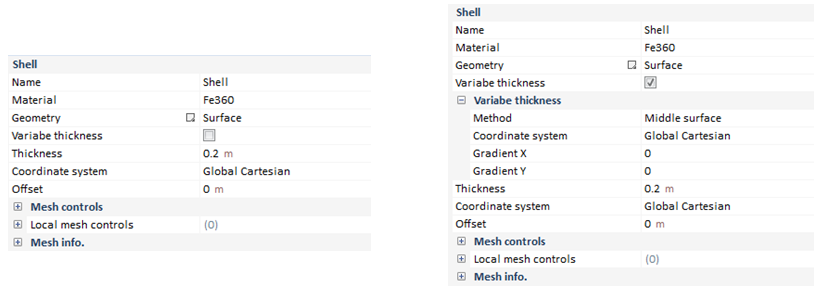
 
 
Material
 
Only structural and generic materials are allowed to be assigned to shell structural elements, that is, structural steel, concrete or generic material.
 
Thickness
 
 In CivilFEM the shell elements are numerically integrated through the thickness, which can be whether variable or constant through the entire shell structural element.
 
For further information, click on the link Variable thickness.
 
Shell offsets
 
Values that locate the node with respect to the default origin of the section (midplane).
 
This concept is widely explained in the Beam-Shell offsets chapter.
 
Shell mesh controls
 
User can take more control in the meshing process by using one of the following element size specifications:
 
Control
Automatic: CivilFEM establishes the shell finite element edge size automatically.
Edge length: This option assures that the length of shell finite element edge size of given structural element is no less than the given number.
Number division: The user defines the number of element divisions in U and V directions of the shell element.
Parasolid: This mesh control takes into account the curvature check, besides providing the possibility of creating a parasolid geometry to mesh by direct approach.
Element type
Triangle or quadrilateral finite element
Algorithm
Advancing front mixed mesher.
Advancing front mesher.
Delaunay triangulation mesher.
Overlay mesher with quadrilaterals.
For quadrilateral meshes, the advancing front method is recommended while the Delaunay method is recommended for triangular meshes.
Mesh transition
Sets mesh transition parameter. Its default value is 1.
When the value is bigger than 1, the element size at the
central area will be larger.
When the value is smaller than 1, the element size at the
central area will be smaller.
 
A more extended description about the Mesh algorithm will be provided in the corresponding chapter. In addition the Measuring mesh quality has its own headland, in which some aspects about the shape of the elements will be properly cleared.
 
Executing a congruent mesh is one of the most important target in our model, therefore, user must fix properly the mesh to the structural element depending on its dimensions.
 
Coordinate system
 
By default, the shell structural element orientation uses the projection of the global cartesian coordinate system.
 
Shell reinforcement
 
Reinforcement in shells shall be defined in many ways:
 
Bending reinforcement
 
The following diagram shows the reinforcement configuration according to X, Y directions:
 
 
Data needed to define axial + bending reinforcement are:
 
Angle of reinforcement
Angle between the reinforcement with respect to the
Y-element axis (Wood Armer’s method).
Reinforcement definition
Number of bars per unit length
Separation between bars
Total amount
Number of bars
Number of bars per unit length at X bottom, X top, Y
bottom and Y top layers.
Spacing
Distance between bars length at X bottom, X top, Y
bottom and Y top layers.
Φ
Reinforcing bars diameter length at X bottom, X top,
Y Bottom and Y top layers.
Total reinforcement
Reinforcement area per unit length at X Bottom, X
top, Y bottom and Y top layers.
Braced/Not braced
Reinforcement situation.
THETA
Angle of the compression struts with element X-axis.
Reinforcing steel
Reinforcing material to be used.
 
In plane shear reinforcement
 
The following diagram shows the reinforcement configuration according to X, Y directions:
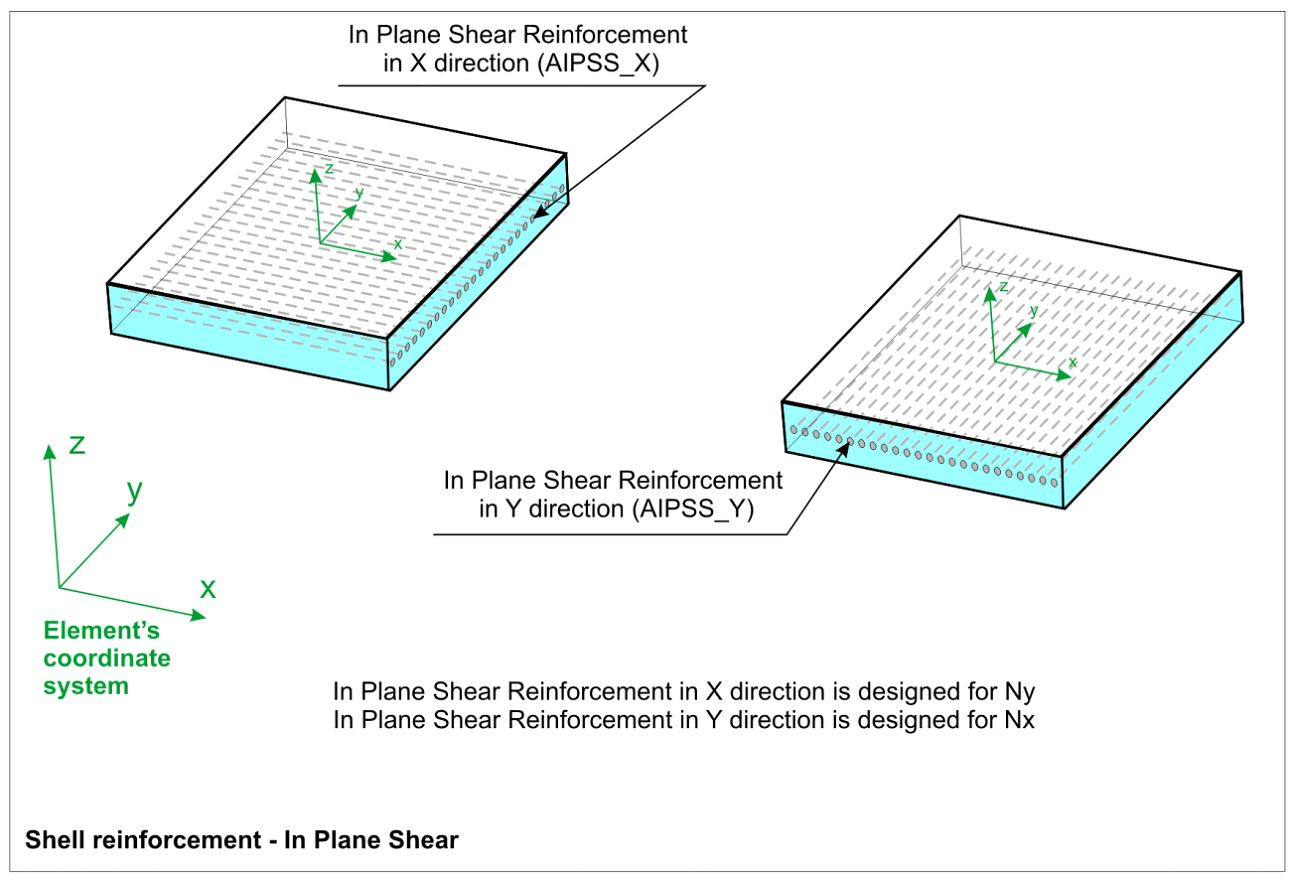
 
 
Data needed to define in-plane reinforcement are:
 
Reinforcement definition
Number of bars per unit length
Separation between bars
Total amount
Number of bars
Number of bars per unit length at X, Y layers.
Spacing
Distance between bars length at X, Y layers.
Φ
Reinforcing bars diameter length at X, Y layers.
Total reinforcement
Reinforcement area per unit length at X, Y layers.
Reinforcing steel
Reinforcing material to be used.
 
Out of plane shear reinforcement
 
The following diagram shows the reinforcement configuration according to X, Y directions:
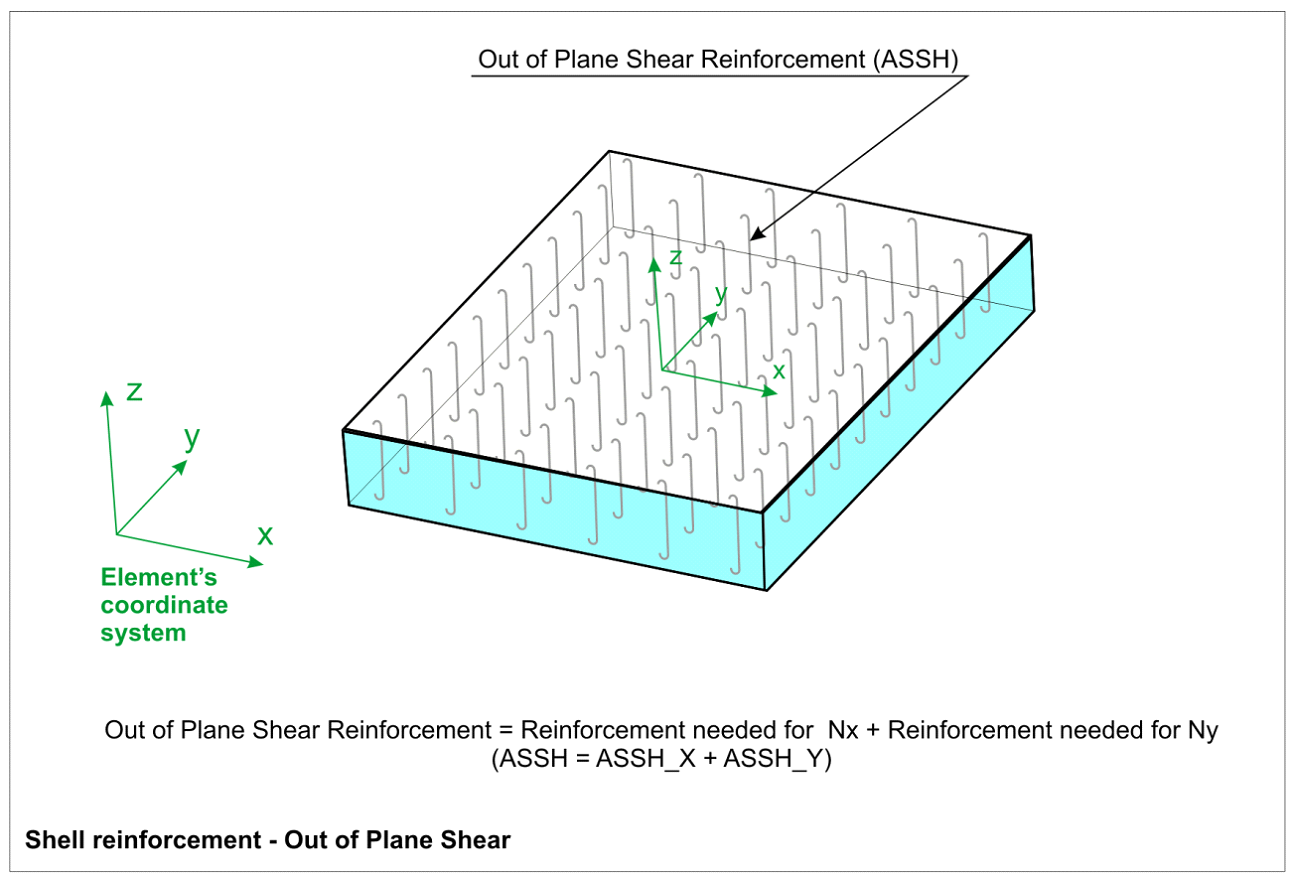
 
 
Data needed to define out of plane reinforcement are:
 
Reinforcement definition
Number of bars per unit length
Separation between bars
Total amount
Number of bars
Number of bars per unit length at X, Y layers.
Spacing
Distance between bars length at X, Y layers.
Φ
Reinforcing bars diameter length at X, Y layers.
Total reinforcement
Reinforcement area per unit length at X, Y layers.
Reinforcing steel
Reinforcing material to be used.
If the user would like to know more about the shell finite element, some pieces of information are provided in the Finite element characteristics chapter.
 
4

Solid 3D button

4. Solid 3D button
Create the structural element for a solid.
 
Solid 3D structural elements will contain the following properties:
 
  • Material
  • Coordinate system
  • Mesh controls
 
Properties bar is showed ahead to be more widely defined:
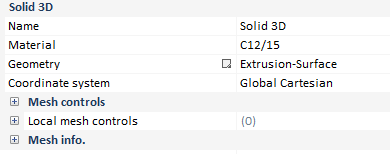
 
Material
 
There is no material restriction for solid structural elements, any material can be assigned (including soil and rock materials).
 
Coordinate system
 
By default, the solid structural element orientation uses the projection of the global cartesian coordinate system.
 
Solid mesh controls
 
User can take more control in the meshing process by using one of the following element size specifications:
 
Control
  • Edge length: This option assures that the length of shell finite element edge size of given structural element is no less than the given number.
Element type
  • 20-node hexahedron
  • 8-node hexahedron
  • 10-node tetrahedron
  • 4-node tetrahedron
Algorithm
Type of meshing algorithm
  • Advancing front mixed mesher.
  • Advancing front mesher.
  • Delaunay triangulation mesher.
  • Overlay mesher with quadrilaterals.
The surface mesh is created on every individual surfaces. In order to create 3D
mesh, the nodes on the outlines of each surface mesh should be merged with the
closest nodes on their neighboring outlines. The merging process is controlled by
sweep tolerance. The process is done internally.
Mesh transition
Sets mesh transition parameter. Its default value is 1.
  • When the value is bigger than 1, the element size at the central volume will be larger.
  • When the value is smaller than 1, the element size at the central volume will be smaller.
 
A more extended description about the Mesh algorithm will be provided in the corresponding chapter. In addition the Measuring mesh quality has its own headland, in which some aspects about the shape of the elements will be properly cleared.
 
Executing a congruent mesh is one of the most important target in our model, therefore, user must fix properly the mesh to the structural element depending on its dimensions.
 
If the user would like to know more about the solid finite element, some pieces of information are provided in the Finite element characteristics chapter.
 
5

Cable button

5. Cable button
Create the structural element for a cable.
 
Cable structural elements will contain the following properties:
 
  • Material
  • Cross section I-J ends
  • Temperature prestressing
  • Mesh controls
 
The different finite element types available for solid structural elements are described in the corresponding chapter.
 
Properties bar is showed ahead to be more widely defined:
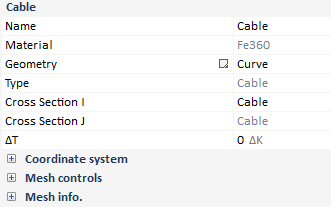
 
Material
 
Material is limited to steel, either regular steel, reinforcement steel or prestressing steel. One important consideration is the material law chosen for the steel material. If the default steel behaviour is used, the material will behave with an asymmetric material law (almost no compression resistance and normal tension resistance). If the law is change to plastic behaviour, the actual plastic law will be used. This implies that the compression branch of the material law will be the one defined by the plastic law.
 
Cross section I-J ends
 
For this version, linear structural elements must have same cross section (constant along the line) for both I-J ends.
 
Only cable sections can be used to define a cable structural element.
 
Temperature prestressing
 
The cable element used is a non-linear element. Non-linearity implies an approximate solution using a non-exact approach. To help the convergence of the model, the user can define an initial prestressing temperature that will act as an initial tension in the cable.
 
Cable mesh controls
 
User can take more control in the meshing process by using one of the following element size specifications:
 
  • Uniform: The mesh of the element will be distributed evenly using equal divisions.
  • Variable L1->L2: The mesh of the element will be distributed unevenly, with the mesh being denser in one end than in the other end of the element. This is useful in cases where a finer mesh is needed near an end to obtain more accurate end results. Two options are present to control the subdivisions:
     
  • Number of divisions: The user enters the total number of divisions and the Relation parameter (must be > 0). This parameter will control the density of the mesh approaching the end of the element. Using a Relation between 0 and 1, or > 1, we can choose which of the two element ends will be denser.
  • Length: Two lengths need to be defined, Length1 and Length2. These lengths represent the size of the divisions at each end.
 
  • Variable L1->L2->L1: This option allows the creation of symmetrical mesh distributions on elements. This is useful in cases where a finer mesh is needed near both end to obtain more accurate end results. Two options are present to control the subdivisions:
     
  • Number of divisions: The user enters the total number of divisions (must be an odd number) and the Relation parameter (must be > 0). This parameter will control the density of the mesh approaching the end of the element. Using a Relation between 0 and 1, or > 1, we can choose which of the two element ends will be more dense:
  • Length: Two lengths need to be defined, Length1 and Length2. These lengths represent the size of the divisions at the end (length1) and the size of the central division (length2).
 
Executing a congruent mesh is one of the most important target in our model, therefore, user must fix properly the mesh to the structural element depending on its dimensions.
 
 
6

Solid 2D button

6. Solid 2D button
Create the structural element for a solid.
 
Solid 2D structural elements will contain the following properties:
 
  • Material
  • Coordinate system
  • Mesh controls
 
Properties bar is showed ahead to be more widely defined:
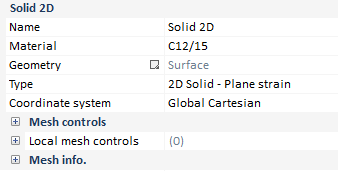
 
Material
 
There is no material restriction for solid structural elements, any material can be assigned (including soil and rock materials).
 
Coordinate system
 
By default, the solid structural element orientation uses the projection of the global Cartesian coordinate system.
 
Solid 2D mesh controls
 
User can take more control in the meshing process by using one of the following element size specifications:
 
Control
Automatic: CivilFEM establishes the shell finite element edge size automatically.
Edge length: This option assures that the length of shell finite element edge size of given structural element is no less than the given number.
Number division: The user defines the number of element divisions in U and V directions of the shell element.
Parasolid: This mesh control takes into account the curvature check, besides providing the possibility of creating a parasolid geometry to mesh by direct approach.
Element type
Triangle or quadrilateral finite element
Algorithm
Advancing front mixed mesher.
Advancing front mesher.
Delaunay triangulation mesher.
Overlay mesher with quadrilaterals.
For quadrilateral meshes, the advancing front method is recommended while the Delaunay method is recommended for triangular meshes.
Mesh transition
Sets mesh transition parameter. Its default value is 1.
When the value is bigger than 1, the element size at the
central area will be larger.
When the value is smaller than 1, the element size at the
central area will be smaller.
 
A more extended description about the Mesh algorithm will be provided in the corresponding chapter. In addition the Measuring mesh quality has its own headland, in which some aspects about the shape of the elements will be properly cleared.
 
Executing a congruent mesh is one of the most important target in our model, therefore, user must fix properly the mesh to the structural element depending on its dimensions.
 
If the user would like to know more about the solid finite element, some pieces of information are provided in the Finite element characteristics chapter.


7Dummy Shell
7. Dummy Shell buttom
 
Creates a dummy shell structural element.
 
This structural element is quiet different from the others. Dummy shells are used to extract the stress fields of solid elements and integrate them in order to obtain the forces and moments. Stresses are integrated along the normal to the geometries selected.
 
Mesh of dummy shells is based on the mesh of the 3D solid elements and the geometries selected.
 
Dummy shells have no influence in the solution of the model. So boundary conditions or loads applied on them are ignored.
 
After solving, the dummy shells are solved and the results of forces and moments are stored in the result file (only available for .rcf result file)