

Combinations Explorer
Once the combinations module has been initialized, any combination, with all its start states, can be defined through this window.
The window of the combinations explorer has the following structure:

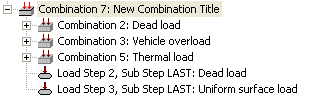
The combinations tree has a list of all the defined combinations, and each combination groups a list of the start states that combines. Each start state can be a data set, load step with substep or another combination previously defined (that can as well nest other combinations). The families (see the Bridge and Civil Non Linearities Module) are also shown in this tree, and each family has a list of Load States.
In the upper part of the window there is a tool bar. Its appearance will change depending on the object selected.
Combinations Tree

It has two main groups:
- Combinations (Combinations). It groups the list of all the combinations for the defined loads.
- Families (Families). It groups the list of all the defined families (see the Bridge and Civil Non Linearities Module).
Clicking with the mouse right button on the different elements of the tree, a contextual menu will appear showing the actions that can be performed on this element or group of elements.
The families information cannot be changed through this window. The combinations information is totally modifiable through this window. It is also possible the definition of new combinations.
Information Window
This window, located at the right of the objects tree, has the following functions:
- To show the properties of each selected object. Whenever an object is selected (combination, load step, dataset, family, etc.) the window will show all its properties.
- To allow to modify data. The selected object will have properties that can be changed by editing the corresponding box of the window of properties.
- To serve as dialogue in certain actions. In some cases, like for example creating a new combination, it is necessary to enter a series of values or properties to perform the desired action.
- To show the possible list of start-states for the combinations: aside from the combinations, there are load steps (with substeps) and the data set previously defined. This list allows multiple selections, maintaining the Control key [CTRL] pressed when selecting the elements.
Properties of a combination:
|
|
Types of combination: |
|
|
Num SS = Number of Start States the combination has. |
NADD = Number of Start States that will be taken simultaneously when combining. |
|


The properties of a start state (it can be another combination):


The list of possible start states to choose for a combination:

Tools Bar
The tool bar is located at the upper part of the window. The tool bar has two parts, the fixed part, that remains unchanged at any time, and the variable part, that adapts to each situation, showing only the buttons that can be used at each moment.
The constant part of the bar of tools is the following one:
 To exit the window saving all changes.
 To exit the window discarding all
changes.
To exit the window discarding all
changes.
 To save the changes.
 To show this help document.
 To undo or to redo the last
changes.
To undo or to redo the last
changes.
 To save the changes and
to perform the combinations.
To save the changes and
to perform the combinations.
 To list properties of
the combinations.
To list properties of
the combinations.
 Buttons to facilitate
the navigation through the tree.
Buttons to facilitate
the navigation through the tree.
 Buttons to close and to open the
branches of the tree in a recursive way.
Buttons to close and to open the
branches of the tree in a recursive way.
The variable part of the bar of tools has a series of buttons that are
activated according to the situation, the selected elements, etc. The functions
that can be performed with these buttons are the same ones explained in combinations
tree through
the contextual menu that appears clicking the mouse right button.
Definition of a new combination
The steps that must be followed to define a combination are:
 Select the group of
all the combinations:
Select the group of
all the combinations:

- Fill
up the information of the new combination:

 Press the button to
create the new combination:
Press the button to
create the new combination:

- Select
in the start states list, the ones desired to be included in the
combination (more than one can be selected maintaining the control key
[CTRL] pressed). The default coefficients that these start states will
have in the combination must also be defined:

- Select
the combination from the tree (it still does not have its start states
defined):

 Drag with the mouse
the selected start states selected from the list, and drop them on the
combination:
Drag with the mouse
the selected start states selected from the list, and drop them on the
combination:

6 Another possibility (instead of "drag & drop") is to press the contextual button in the bar of tools:


This way, the combination is completely defined:
Related Commands: