

- CivilFEM Documentation
- CivilFEM Commands Reference
- A commands
- B commands
- ~BLCBDEL
- ~BLCBEND
- ~BLCBLD
- ~BLCBPA
- ~BLCBST
- ~BLF2CMB
- ~BLFDEL
- ~BLFDF
- ~BLFLST
- ~BLPL
- ~BLPLPL
- ~BLSA
- ~BLSB
- ~BLSEND
- ~BLSOLVE
- ~BLSST
- ~BLSTF
- ~BLVA
- ~BLVB
- ~BLVC
- ~BLVD
- ~BLVDEL
- ~BLVEND
- ~BLVGEN
- ~BLVLIB
- ~BLVLST
- ~BLVMDF
- ~BLVR
- ~BLVST
- ~BLWRITE
- ~BMSHDEL
- ~BMSHGEN
- ~BMSHLST
- ~BMSHOFF
- ~BMSHPRO
- ~BRAC
- ~BRADDEL
- ~BRADDPL
- ~BRANG
- ~BRBC
- ~BRCS
- ~BRCSOPT
- ~BRDEF
- ~BRDELEL
- ~BRDELPL
- ~BRGEN
- ~BRHL
- ~BRHLDEL
- ~BRHLMDF
- ~BRINIP
- ~BRIQR
- ~BRMVDL
- ~BRPD
- ~BRPLST
- ~BRSBOX
- ~BRSCN
- ~BRSDEL
- ~BRSDIV
- ~BRSGEN
- ~BRSKTCH
- ~BRSLST
- ~BRSMDF
- ~BRSSLAB
- ~BRSTOCS
- C commands
- ~CALSERC
- ~CBDMS
- ~CFABOUT
- ~CFACTIV
- ~CFCLEAR
- ~CFCONFG
- ~CFEXIT
- ~CFFILE2
- ~CFFL3D
- ~CFGET
- ~CFHBRD
- ~CFHBWR
- ~CFLSSLV
- ~CFLSWRT
- ~CFMP
- ~CFMPDEL
- ~CFMPGEN
- ~CFMPLIB
- ~CFMPLST
- ~CFRAPPN
- ~CFRESUM
- ~CFSAVE
- ~CFSET
- ~CFVGET
- ~CFVLEN
- ~CFVMASK
- ~CHKCON
- ~CHKPRS
- ~CHKSTL
- ~CLPRD
- ~CMB
- ~CMBCLR
- ~CMBDAT
- ~CMBDEF
- ~CMBDEL
- ~CMBINQ
- ~CMBLST
- ~CMBMOD
- ~CMBPRM
- ~CMBSTAT
- ~CODESEL
- ~COMBINE
- ~COST
- ~COSTLST
- ~CPDEF
- ~CPSTDEF
- ~CRLTCOM
- ~CRLTDEF
- ~CRLTDEL
- ~CRLTLST
- ~CRLTUSE
- ~CSDEL
- ~CSECDMS
- ~CSGEN
- ~CSIQR
- ~CSLIB
- ~CSLST
- ~CSMRG
- D commands
- E commands
- F commands
- G commands
- H commands
- I commands
- L commands
- M commands
- P commands
- ~P_SPEC
- ~PCCBDEL
- ~PCCBEND
- ~PCCBPA
- ~PCCBST
- ~PCCTMDF
- ~PCDEL
- ~PCEPDEL
- ~PCEPDEF
- ~PCEPGEN
- ~PCEPMDF
- ~PCLOSS
- ~PCPL
- ~PCPLPL
- ~PCPPDEL
- ~PCPPDEF
- ~PCPPGEN
- ~PCPPMDF
- ~PCTNDEL
- ~PCTNDEF
- ~PCTNGEN
- ~PCTNLST
- ~PCTNMDF
- ~PCTYPE
- ~PL2DINT
- ~PL2DPRS
- ~PLCSBS
- ~PLCSCON
- ~PLCSEC3
- ~PLCSSTR
- ~PLFILE
- ~PLHBMAT
- ~PLHCLPF
- ~PLLSCON
- ~PLLSFOR
- ~PLLSPRS
- ~PLLSSTL
- ~PLLSSTR
- ~PLSEEP
- ~PLSHCLP
- ~PLSHCON
- ~PLSHFOR
- ~PLSHPRS
- ~PLSHSTR
- ~PLTEND
- ~PR2DINT
- ~PR2DPRS
- ~PRCON
- ~PRFOR
- ~PRHCLPF
- ~PRPRS
- ~PRSHCLP
- ~PRSTL
- ~PRSTR
- ~PUSHDEF
- ~PUSHLST
- ~PUSHMOD
- ~PUSHSLV
- R commands
- S commands
- ~SBBMDEF
- ~SBCANNT
- ~SBCLEAR
- ~SBLST
- ~SBPAR
- ~/SBSHOW
- ~SBSMDEF
- ~SBSMMDF
- ~SD2SH
- ~SEC2DIN
- ~SEC2DOU
- ~SECMDF
- ~SEEPAGE
- ~SEEPMOD
- ~SHLDEL
- ~SHLGEN
- ~SHLIPSH
- ~SHLLST
- ~SHLMDF
- ~SHLRNF
- ~SHLSHR
- ~SHLSTL
- ~SLDDEL
- ~SLDLST
- ~SLDMDF
- ~SLDSEC
- ~SLPCIR
- ~SLPCIRK
- ~SLPIN
- ~SLPINK
- ~SLPLST
- ~SLPOPT
- ~SLPPOL
- ~SLPPWP
- ~SLPSOL
- ~SLPTAN
- ~SLPTANK
- ~SSECDMS
- ~SSECLIB
- ~SSECPLT
- ~STSTCFT
- ~STSTDEF
- T commands
- U commands
- V commands
- W commands
- 6.1 CivilFEM Combinations
- 6.2 Results Combination in ANSYS and in CivilFEM
- 6.3 Basic Terminology
- 6.4 Types of Combination Rules
- 6.5 Data Groups
- 6.6 Envelopes
- 6.7 Concomitance at Load and Model Level
- 6.8 Comment about Beam188 and Beam189 Elements
- 6.9 Start State Combinations with Prestressing Tendons
- 6.10 Calculation of All Possible Load Cases
- 6.11 Automatic Load Combinations for Standards
- 11–A.1 Introduction
- 11–A.2 Predesign of Rectangular Sections
- 11–A.3 3D Interaction Diagram
- 11–A.4 Axial Load and Biaxial Bending Checking
- 11–A.5 Axial Load and Biaxial Bending Design (Reinforcement Factor)
- 11–A.6 Axial Load and Biaxial Bending Design (Reinforcement Amount)
- 11–A.7 Calculation Codes
- 11–A.8 Previous Considerations to Shear and Torsion Calculation
- 11–A.9 Shear and Torsion according to Eurocode 2 (ENV 1992–1–1:1991)
- 11–A.10 Shear and Torsion according to Eurocode 2 (EN 1992–1–1:2004/AC:2008) and ITER Design Code
- 11–A.11 Shear and Torsion according to ACI 318–05
- 11–A.12 Shear and Torsion according to ACI 318–14
- 11–A.13 Shear and Torsion according to ACI 318–19
- 11–B.1 Introduction
- 11–B.2 Shear and Torsion according to EHE–98
- 11–B.3 Shear and Torsion according to EHE–08
- 11–B.4 Shear and Torsion according to BS8110
- 11–B.5 Shear and Torsion according to AS3600
- 11–B.6 Shear and Torsion according to GB50010–2002
- 11–B.7 Shear and Torsion according to GB50010–2010
- 11–B.8 Shear and Torsion according to NBR6118
- 11–B.9 Shear and Torsion according to AASHTO Standard Specifications for Highway Bridges
- 11–B.10 Shear and Torsion according to Code of Rules 52–101–03 and SP 63.13330.2012
- 11–B.11 Shear and Torsion according to IS 456
- 11–C.1 Introduction
- 11–C.2 Shear and Torsion according to ACI 349–01 y ACI 349–06
- 11–C.3 Shear and Torsion according to ACI 349–13
- 11–C.4 Cracking Analysis
- 11–C.5 Cracking Checking according Eurocode 2 (ENV 1992–1–1:1991)
- 11–C.6 Cracking Checking according Eurocode 2 (EN 1992–1–1:2004/AC:2008) and ITER Design Code
- 11–C.7 Cracking Checking according to ACI 318–05 and ACI 318–14
- 11–C.8 Cracking Checking according to EHE (EHE–98 and EHE–08)
- 13.1 General Concepts
- 13.2 Design for Bending Moment and Torsion – Wood–Armer Method
- 13.3 Design under Bending Moment and In Plane Loading – CEB–FIP Method
- 13.4 Design according to the Orthogonal Directions Method
- 13.5 Design according to the Most Unfavorable Direction Method
- 13.6 Check and Design for Out–of–Plane Shear Loadings according to Eurocode 2 (ENV 1992–1–1:1991)
- 13.7 Check and Design for Out–of–Plane Shear Loadings according to Eurocode 2 (EN 1992–1–1:2004/AC:2008) and ITER Design Code
- 13.8 Check and Design for Out–of–Plane Shear Loadings according to EHE–98
- 13.9 Check and Design for Out–of–Plane Shear Loadings according to EHE–08
- 13.10 Check and Design for Out–of–Plane Shear Loadings according to Code of Rules 52–101–03 and SP 63.13330.2012
- 13.11 Check and Design for Out–of–Plane Shear Loadings according to ACI 318–05
- 13.12 Check and Design for Out–of–Plane Shear Loadings according to ACI 318–14
- 13.13 Check and Design for Out–of–Plane Shear Loadings according to ACI 318–19
- 13.14 Check and Design for Out–of–Plane Shear Loadings according to ACI 349–01 and ACI 349–06 (Reinforced Concrete)
- 13.15 Check and Design for Out–of–Plane Shear Loadings according to ACI 349–13 (Reinforced Concrete)
- 13.16 Check and Design for In–plane Shear Loadings according to ACI 349–01and ACI 349–06
- 13.17 Check and Design for In–plane Shear Loadings according to ACI 349–13
- 13.18 Check and Design according to ACI 359–04 (Reinforced Concrete)
- 13.19 Check and Design according to ACI 359–04 (Prestressed Concrete)
- 13.20 Cracking Checking according Eurocode 2 (EN 1992–1–1:2004/AC:2008)
- 13.21 Cracking Checking according to ACI 318–05, ACI 318–14 and ACI 318–19
- 13.22 Cracking Checking according to Code of Rules 52–101–03 and SP 63.13330.2012
- 14.1 Introduction
- 14.2 Spectrum Calculation according to Eurocode 8 (ENV–1998–1–1:1994)
- 14.3 Spectrum Calculation according to Eurocode 8 (EN–1998–1:2004)
- 14.4 Spectrum Calculation according to NCSE–94
- 14.5 Spectrum Calculation according to NCSE–02
- 14.6 Spectrum Calculation according to GB50011
- 14.7 Spectrum Calculation according to GB50011–2010
- 14.8 Spectrum Calculation according to IT3274
- 14.9 Spectrum Calculation according to AASHTO LRFD Bridge Design Specifications
- 14.10 Spectrum Calculation according to EAK 2000
- 14.11 Spectrum Calculation according to CALTRANS Seismic Design Criteria
- 14.12 Spectrum Calculation according to the Uniform Building Code (1997)
- 14.13 Spectrum Calculation according to PS 92
- 14.14 Spectrum Calculation according to the Indian Standard 1893
- 14.15 Modal Analysis of the Structure
- 14.16 Modes Combination
- 14.17 Push Over Analysis
- 14.18 Seismic Safety Margin
- 17–A.1 Introduction
- 17–A.2 Definition of Layered Soils
- 17–A.3 Ballast Module
- 17–A.4 Retaining Walls 1 ½ D
- 17–A.5 Slope Stability
- 17–A.6 Mohr–Coulomb Plasticity Model
- 17–A.7 Cam–Clay Plasticity Model
- 17–A.8 Hoek and Brown's Failure Criteria
- 17–A.9 Seepage
- 17–A.10 Earth Pressures
- 17–A.11 Terrain Initial Stress
- /SBSHOW
- ACTMAT
- ACTTIME
- ALTER
- BLCBDEL
- BLCBEND
- BLCBLD
- BLCBPA
- BLCBST
- BLF2CMB
- BLFDEL
- BLFDF
- BLFLST
- BLPL
- BLPLPL
- BLSA
- BLSB
- BLSEND
- BLSOLVE
- BLSST
- BLSTF
- BLVA
- BLVB
- BLVC
- BLVD
- BLVDEL
- BLVEND
- BLVGEN
- BLVLIB
- BLVLST
- BLV;DF
- BLVR
- BLVST
- BLWRITE
- BMSHDEL
- BMSHGEN
- BMSHLST
- BMSHOFF
- BMSHPRO
- BRAC
- BRADDEL
- BRADDPL
- BRANG
- BRBC
- BRCS
- BRCSOPT
- BRDEF
- BRDELEL
- BRDELPL
- BRGEN
- BRHL
- BRHLDEL
- BRHLMDF
- BRINIP
- BRIQR
- BRMVDL
- BRPD
- BRPLST
- BRSCN
- BRSDEL
- BRSDIV
- BRSGEN
- BRSKTCH
- BRSBOX
- BRSLST
- BRSMDF
- BRSSLAB
- BRSTOCS
- CALSERC
- CBDMS
- CFABOUT
- CFACTIV
- CFCLEAR
- CFCONFG
- CFEXIT
- CFFILE2
- CFFL3D
- CFGET
- CFHBRD
- CFHBWR
- CFLSSLV
- CFLSWRT
- CFMP
- CFMPDEL
- CFMPGEN
- CFMPLIB
- CFMPLST
- CFRAPPN
- CFRESUM
- CFSAVE
- CFSET
- CFVGET
- CFVLEN
- CFVMASK
- CHKCON
- CHKPRS
- CHKSTL
- CLPRD
- CMB
- CMBCLR
- CMBDAT
- CMBDEF
- CMBDEL
- CMBINQ
- CMBLST
- CMBMOD
- CMBPRM
- CMBSTAT
- CODESEL
- COMBINE
- COST
- COSTLST
- CPDEF
- CPSTDEF
- CRLTCOM
- CRLTDEF
- CRLTDEL
- CRLTLST
- CRLTUSE
- CSDEL
- CSECDMS
- CSGEN
- CSIQR
- CSLIB
- CSLST
- CSMRG
- DAHEAD
- DASEEP
- DEFSPEC
- DIMCON
- DIMPRS
- DIMPRS
- DIMSTL
- DLHEAD
- DLSEEP
- EFFPRES
- EFSAPPL
- EFSCALC
- EFSLST
- ENVDEF
- ENVDEL
- ENVELOP
- ETHSF
- ETHSFE
- FL3DRES
- FMREAD
- FMWRITE
- FRMBS
- FRMCPY
- FRMCR
- FRMDEF
- FRMDEL
- FRMGEN
- FRMGT
- FRMLDS
- FRMLST
- FRMMDL
- FRMVHS
- FRTRCK
- GENSPEC
- GENTEN
- GRCSBS
- GRCSCON
- GRCSEC3
- GRCSSTR
- GRSLPD
- GRSLPR
- GTPD
- HBSOLVE
- HCLPFCN
- HCLPFST
- IDHCLPF
- ILCLOSE
- ILOPEN
- ISOBAR
- L_MOD
- L_SPEC
- LINCMB
- LINLST
- LPRNSOL
- LPSOLVE
- LSTFMT
- MEMBDEL
- MEMBGEN
- MEMBLST
- MEMBPRO
- MOD_SF
- MODLSOL
- P_SPEC
- PCCBDEL
- PCCBEND
- PCCBPA
- PCCBST
- PCCTMDF
- PCDEL
- PCEPDEF
- PCEPDEL
- PCEPGEN
- PCEPMDF
- PCLOSS
- PCPL
- PCPLPL
- PCPPDEF
- PCPPDEL
- PCPPGEN
- PCPPMDF
- PCTNDEF
- PCTNDEL
- PCTNGEN
- PCTNLST
- PCTNMDF
- PCTYPE
- PL2DINT
- PL2DPRS
- PLCSBS
- PLCSCON
- PLCSEC3
- PLCSSTR
- PLFILE
- PLHBMAT
- PLHCLPF
- PLLSCON
- PLLSFOR
- PLLSPRS
- PLLSSTL
- PLLSSTR
- PLSEEP
- PLSHCLP
- PLSHCON
- PLSHFOR
- PLSHPRS
- PLSHSTR
- PLSHPRS
- PLTEND
- PR2DINT
- PR2DPRS
- PRCON
- PRFOR
- PRHCLPF
- PRPRS
- PRSHCLP
- PRSTL
- PRSTR
- PUSHDEF
- PUSHLST
- PUSHMOD
- PUSHSLV
- RCVWRT
- REDEF
- REDEL
- RETROFT
- RNFDEF
- RNFMDF
- SBBMDEF
- SBCANNT
- SBCLEAR
- SBLST
- SBPAR
- SBSMDEF
- SBSMMDF
- SD2SH
- SEC2DIN
- SEC2DOU
- SECMDF
- SEEPAGE
- SEEPMOD
- SHLDEL
- SHLGEN
- SHLIPSH
- SHLLST
- SHLMDF
- SHLRNF
- SHLSHR
- SHLSTL
- SLDDEL
- SLDLST
- SLDMDF
- SLDSEC
- SLPCIR
- SLPCIRK
- SLPIN
- SLPINK
- SLPLST
- SLPOPT
- SLPPOL
- SLPPWP
- SLPSOL
- SLPTAN
- SLPTANK
- SSECDMS
- SSECLIB
- SSECPLT
- STSTCFT
- STSTDEF
- TENLD
- TERDEF
- TERDEL
- TERGEN
- TERLST
- TETHEX
- TIS
- TN2DIN
- TNADDEL
- TNADDPL
- TNADV
- TNGEN
- TNINIP
- TNSKTCH
- TPLST
- TPHASE
- TPOST
- TPSET
- TREFINE
- TRGDEF
- TRGDEL
- TRGLST
- TRGUPT
- TSOLVE
- TSTEP
- TTRUSS
- UNITS
- UPDATE
- VARTH
- VERIF
- VWHTML
- VWTXT
- VWXLS
- WALLANC
- WALLGEN
- WALLINI
- WALLJNT
- WALLMOD
- WALLSOL
- WALLSTP
- WATTAB
- WEIGHT
- WTSLP
- WTSOLVE
Terrain explorer
In the terrains window there is a list of the terrains defined by the user in the database. Moreover, we can create a New Terrain, Modify, Delete, Copy or List existing terrains ~TERDEF, ~TERDEL, ~TERGEN and ~TERLST commands)

When creating a new terrain, the following window appears
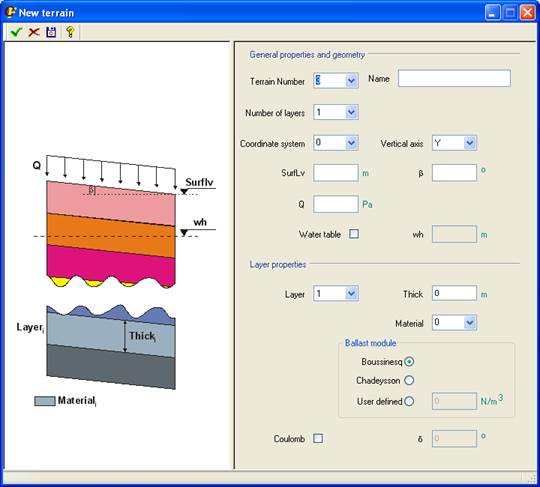
On the upper right hand side of the window (General properties and geometry) the general data of the terrain are introduced:
- Ueth: Id number of the terrain.
- Name: Name of the terrain.
- NLayer: Number of terrain layers.
- eaKcn: Coordinate system the terrain is referred to.
- eaDir: Axis which defines de gravity direction.
- SurfLv: Surface level.
- b: Inclination angle of the layers with the horizontal line.
- Q: Surface pressure.
- wKey: Label to define if the water table is taken into account in the analysis.
- wh: Water table level.
On the lower right hand side (Layer properties) the different layers are defined by entering its parameters. These parameters are:
· Layer: Number of the layer. Starting from the uppermost layer, consecutive as the level decreases.
· Thick: Layer thickness.
· Material: Number of the material applied to the layer.
· Ballast Module: Horizontal Ballast Module (used in the calculus of retaining walls). Three options can be selected: Boussinesq, Chadeysson or User Defined.
· Coulomb: Type of earth pressure considered in the calculus. If this check box is not activated the material’s database earth pressure coefficients will be used (Rankine theory). If it is activated, the coefficients will be recalculated during the calculus to follow Coulomb’s theory.
· d: This parameter is not available in this version of CivilFEM.
To change the properties of a previously defined terrain, the Modify button must be pressed. The window that appears is the same as the one described before (terrain creation), with the difference that the Ueth field cannot be changed.
Related commands: