

Material Browser
In the material’s window the user may find a list of the materials currently defined in the database. Moreover, the user may create a New material, Delete, Modify, Copy or List existing materials (~CFMP, ~CFMPDEL, ~CFMPGEN and ~CFMPLST commands). It is also possible to Save a modified material to use it in future sessions (~CFMPLIB command).
It is also possible to define from this window, the correlations that will be used in the geotechnical materials, by pressing the Correlations button.
In the bottom side, field ActTime is located. Here the active time can be changed (~ACTTIME command).
In the left side there is an icon with the type of material.
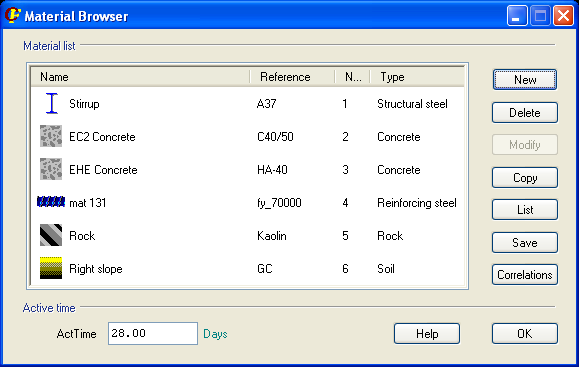
When a new material is created, the following window is displayed. It is possible to choose any of the different materials CivilFEM has in its library.

User materials saved in previous sessions can also be selected (USER folder).
If a material is modified, the window with specific material properties is displayed.
In the window top edge, the user may find various labels that give access to the different material properties. These labels are:
For concrete, structural steel, reinforcement steel and prestressing steel:
- General
- Analysis Diagram
- Design Diagram
- Material type (Steel, Concrete, Reinforcing Steel)
- Creep/Shrinkage (only available for concrete)
- Code (ACI, EA, EHE, Eurocode No2., Eurocode No3., GB50010, CEB-FIP 1990, British Standard 5950-85, British Standard 5950-01, British Standard 8110, AS 3600, NBR6118, ASSHTO)
- FLAC3D
For soils and rocks:
- General
- Structural Analysis
- Specific Weight
- Properties
- Hoek Brown (only available for rocks)
- Grain-size (only available for soils)
- Correlations
- FLAC3D
Concrete, structural steel, reinforcement steel and prestressing steel
The General window contains the material’s name (Name) and its reference in the CivilFEM library (Reference), the Type, activation and deactivation times (TAct and TDeAct), Mechanical Properties and Cost related data.

The Analysis Diagram window and the Design Diagram window show diagrams that will be used in the different types of CivilFEM calculations. It is possible to modify the diagrams by previously changing the field Type to 0: User Defined. Depending on the type of diagram, different non-linear behaviours can be selected (KPLA property).

Concrete materials have the possibility to automatically generate the needed values for the definition of SOLID65 elements, by checking the KS65 box. These values can be changed in the SOLID65 Properties window through the SOLID65 Values button:


The material type window and the associated code window will vary according to the selected material and active code.


Time dependent materials (concrete) have the option to plot the evolution of certain properties through time, by clicking with the right mouse button on the name of the property:


The Creep/Shrinkage label allows to set these properties according to the selected code . This label is only available for concrete.

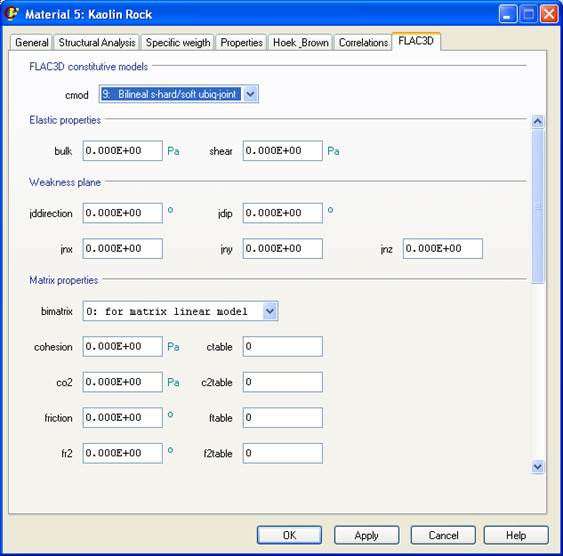
The FLAC3D label contains the parameters that will be used for the FLAC3D materials when the model is generated.

Soils and rocks
The General window contains the material’s name (Name) and its reference in the CivilFEM library (Reference), the Type, activation time (TAct), Mechanical Properties and Cost related data.

The Structural Analysis window contains the following data:
- Properties used in a structural analysis with Ansys: Elasticity module, Poisson’s coefficient, density.
- Ansys plastic behaviour: Elastic, Drucker-Prager or Drucker-Prager equivalent parameters. The Drucker-Prager behaviour will use the properties given for Drucker-Prager under the Properties tab, while the Drucker-Prager equivalent parameters will use the Mohr Coulomb parameters and do the transformation to the equivalent Drucker-Prager parameters.
- Static properties.
- Parameters from a material’s seismic test.

The label Specific weight gathers all data referred to the material’s specific weight: Specific weights, Densities, Porosity and Water content.

The properties label includes the characteristic properties of the material. These properties are: Test properties, earth resistance parameters (Mohr-Coulmb, Drucker-Prager and Drucker-Prager equivalent parameters), Earth pressure coefficients, Seepage and consolidation parameters. The fields that should be filled in depend on the material definition (rock or a soil).

The Hoek_Brown label contains the parameters needed to define the material, following Hoek & Brown theory (only rocks).
The Grain-size label allows to characterize the soil’s grain size and its plasticity (Atterberg limits). This label is only available for soils.
The Correlations window is used to define the correlations between different parameters. The Fname field is the name of the field the correlations will be read from. This file can be CivilFEM’s file or another one, defined previously. Then the correlation to be used, and the property it will be applied on, must be chosen. Pressing the Apply correlation button (~CRLTUSE command), calculates the property value.

The FLAC3D label contains the parameters that will be used for the FLAC3D soil and rock materials when the model is generated.
User materials
After modifying a material, it can be saved to be used in future sessions of CivilFEM. To do this the user must just press the Save button on the material browser window.

The name of the file where the material will be stored must be specified in the Database FileName field. If the file does not exist, it will be created, and if it already exists, the material will be added to the file. The name of the file will be the name of the folder that will appear inside the USER group of materials, and it will contain all the materials stored in it.

If one of the files (or groups) that contains the saved materials is selected, and the button List material file is pressed, a list with the contents of the file will be created. In this list also appear some of the properties of the materials.
To delete a saved material it has to be selected, and then the button Delete material/file must be pressed.
To delete a whole file, all of the materials it contains must be deleted first. Once it is empty it is possible to delete it by selecting it and pressing the Delete material/file.
The files created are located in the folder MatLib\UserLib and have a .UMP extension. To use the saved materials in a different computer, it is only necessary to copy the file or files that contain the materials to the respective folder on the other computer.
Correlations
Pressing the Correlations button in the material browser, a new window is opened. In this window all the defined correlations are shown, and can be listed (List button, ~CRLTLST command).

The file where the correlations are stored, can be chosen in the Fname field. These files are stored in %CivilFEM%\MatLib\Correlat, being %CivilFEM% the root where CivilFEM has been installed. The extension for these files is .crlt.
The defined correlations can be modified (Modify button) or Deleted (Delete button, ~CRLTDEL command).
To create a new correlation’s file, its name must be written in the Fname field. Then it is necessary to change the focus to other part of the window for CivilFEM to apply the changes. This can be done by clicking on the Correlation or Comment boxes.
Once the new file’s name is recognized, the new correlations can be added by pressing the New button (~CRLTDEF command):

In this New correlation window, the new correlation must be defined in the following way:
- Icor: Correlation identification number.
- Correlation: Analytic expression of the correlation. The functions and operator that can be used are defined in the Function and Operator fields. No blank spaces can be introduced between operators, variables or functions. The formulae must be entered using International System units.
- Comment: Text comment on the new correlation (~CRLTCOM command).
- Function: Collection of functions that can be used in the correlation’s expression.
- Operator: Group of mathematical operators that can be used.
- Soil/Rock: Type of the material the correlation will be applied to.
- Data: Material’s parameters that can be used as variables in the analytic expression.
Related commands: